Kingdom Guard Bot
Contents
- 0. How to use this guide
- 1. How Bot 3.0 works
- 2. Getting started
- 2.1. Installation
- 2.2. License, trial and plans
- 2.3. Adding a game account
- 2.4. Choosing characters
- 2.5. Connecting a character
- 2.6. Second device, Telegram, server, autostart
- 2.7. Your first 10 minutes: what to turn on
- 3. The program window
- 4. Key concepts
- 4.1. The game day and UTC
- 4.2. What “Launch automatically” means on each tab
- 4.3. What can spend Gems and resources
- 4.4. One queue per character
- 5. The “Farm” tab
- 6. The “Quests\Collect” tab
- 7. The “Groot (Alliance Altar)” tab
- 8. The “Shop” tab
- 9. The “Calculator” tab
- 10. The “Mithril” tab
- 11. The “Lava Cave” tab
- 12. The “Exploration” tab
- 13. The “Burning Expedition” / “The Deep Ruins” tab (KvK)
- 14. The “War” tab (Throne War)
- 15. The “Dragon Valley” tab
- 16. The “Wishing Well” tab 💎
- 17. The “Evil Spirit Battlefield” tab
- 18. The “Statistics” tab
- 19. The “Waves” tab (Defense waves)
- 20. Farmer mode
- 20.3. “Farm on selected” — continuous farming
- 20.4. Farm growth (autonomous)
- 21. Troubleshooting
- 22. Glossary
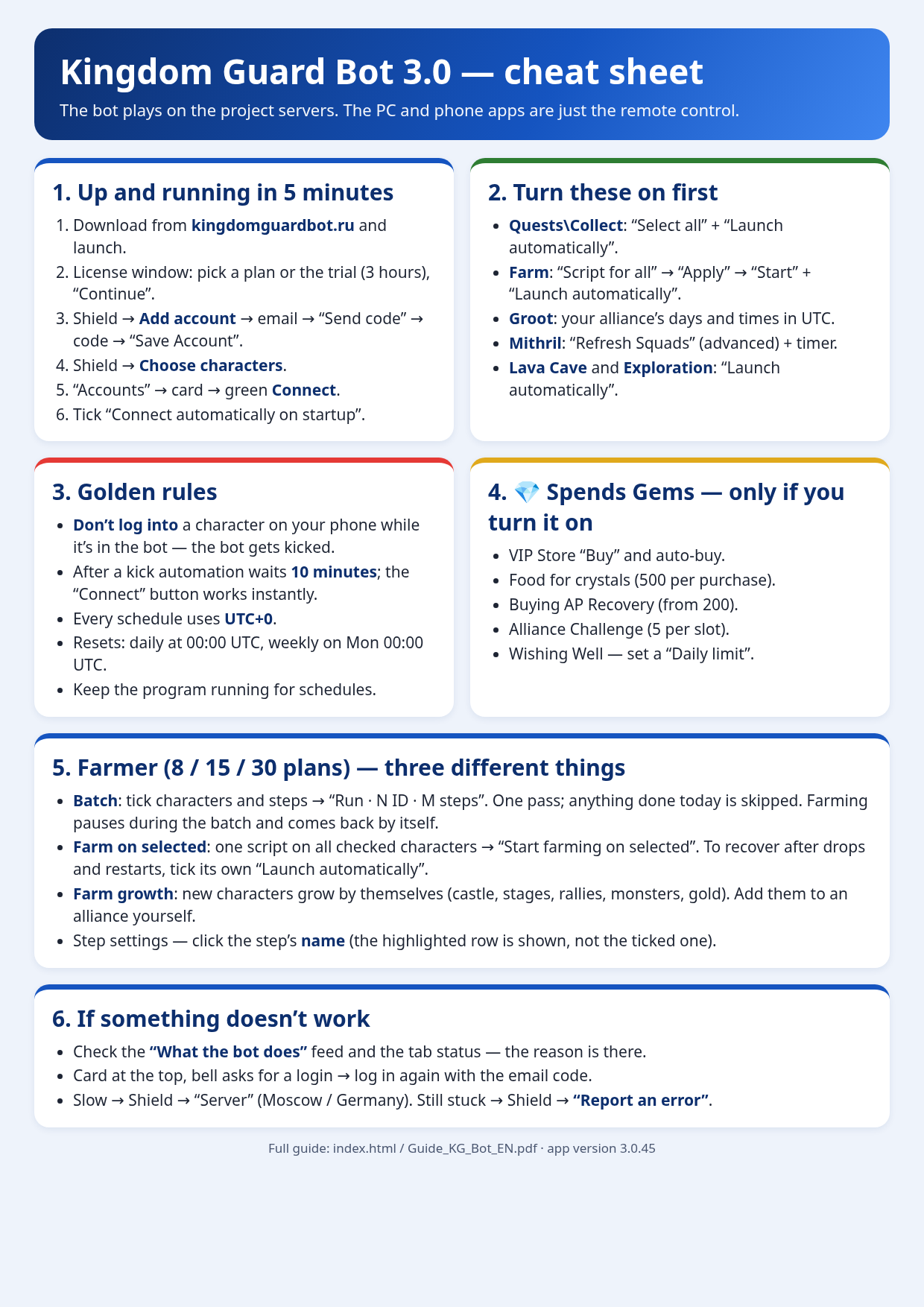
- 23. Cheat sheet
0How to use this guide
This guide is written for regular Kingdom Guard players. You don’t need any technical background — just read in order and follow the steps.
- Sections 1–4 are the basics: how the bot works, how to install it, log in, add your game accounts and pay for a subscription. Please read these.
- Sections 5–19 cover one tab of Basic mode each. Every chapter has: what it does, when it’s useful, step-by-step setup, what each setting means, common mistakes and an FAQ.
- Section 20 is Farmer mode: running many characters at once.
- Sections 21–23 are troubleshooting, a glossary and a one-page cheat sheet.
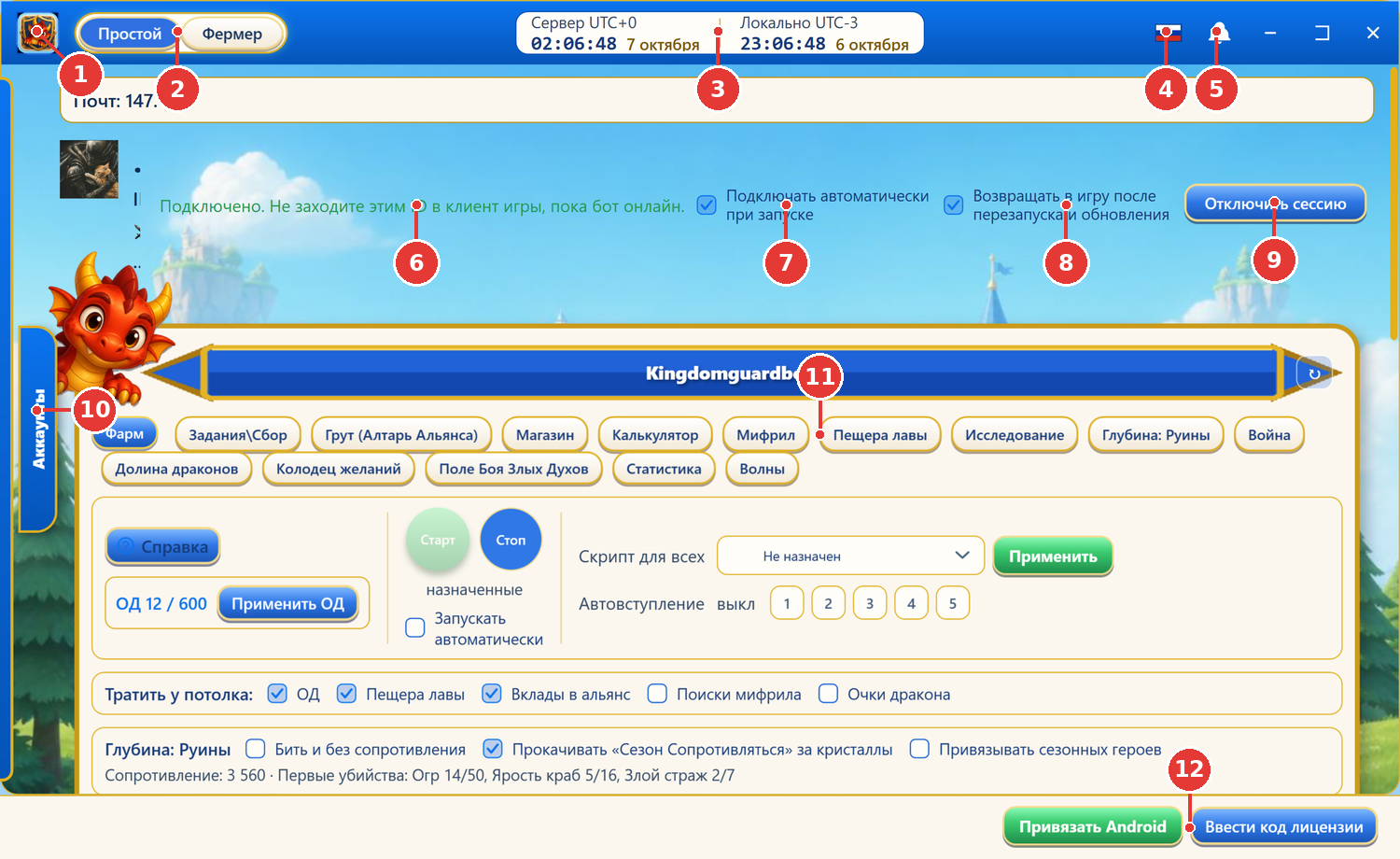
Screenshots of the app carry red numbers 1. Under every screenshot there is a legend explaining each number. Hand-drawn diagrams are always labelled “Diagram”.
Players’ personal data (emails, nicknames) is blurred on the screenshots.
1How Bot 3.0 works
Since version 3.0, Kingdom Guard Bot does not run on your PC or phone. The bot is the project’s own game client that plays on the project’s servers. The Windows program and the Android app are just a remote control: you pick what to do there and watch what’s happening.
What this means for you:
- No emulator needed, and the game doesn’t have to be open. Nothing gets “tapped” on a screen — the bot talks to the game directly.
- A character stays in the game as long as it is connected in the bot. Disconnect it and the bot leaves the game.
- One character — one login. If you log into the same character in the normal game on your phone, the game kicks the bot out (and vice versa). That’s why a connected character’s card says: “Don’t log into this ID in the game client while the bot is online.”
- The bot never spends Gems on its own. Gems are spent only in features where you yourself ticked a box or pressed a buy button. The full list is in section 4.3.
Two modes
| Mode | What it’s for | Where to switch |
|---|---|---|
| Basic (Простой) | Working with one selected character: 15 tabs (Farm, Quests, Groot, Shop and so on). Good for everyone. | The “Basic / Farmer” switch in the window header (number 2 in the picture below). |
| Farmer | Many characters at once: a batch of steps (collect everything, join rallies, buy out the shop…) across all checked characters, plus continuous farming and autonomous farm growth. Only on the 8, 15 and 30 account plans. |
- 1Shield — the app menu: profile and subscription, “Add account”, “Choose characters”, codes, server, help, “Report an error”, exit.
- 2Mode switch: “Basic” (one character) or “Farmer” (many characters at once).
- 3Clocks: game server time (UTC+0) and your local time. Every schedule in the bot uses UTC+0.
- 4Interface language (Russian, English, Chinese).
- 5Bell: notifications — a code login is needed, the Mithril timer ran out, replies from support.
- 6Status of the selected character: “Connected. Don’t log into this ID in the game client while the bot is online.”
- 7“Connect automatically on startup” — this character logs into the game by itself whenever the app starts.
- 8“Reconnect after restarts and updates” — the bot brings the character back after an update or restart.
- 9“Disconnect session” — logs only this character out of the game and stops its scripts.
- 10The blue “Accounts” side button opens the list of all your characters.
- 11The 15 tabs of Basic mode. They work on the character selected in the list.
- 12Link an Android phone / “Enter a license code” — one license covers a PC plus a phone.
2Getting started
2.1. Installation
- Go to kingdomguardbot.ru and download the program for Windows or the app for Android.
- Windows: run the installer and follow the prompts. Android: install the APK (your phone may ask you to allow installs from this source).
- There is no separate iPhone/iPad app — you can run an Android emulator on a computer or use the Windows program.
- Launch the program. Updates arrive by themselves: when a new version is out, an “Update Available” window appears → Update. The update file is checked with a checksum, so it can’t be swapped. To check manually: shield → “Check for update”.
2.2. License, trial and plans
On first launch you’ll see the “This PC’s license” window. The license is tied to your computer by its HWID (a unique hardware ID).
- Wait for “Verifying with server…” — the app checks whether this PC already has a license.
- If there is no license yet, pick a plan (table below) and pay, or request a trial.
- If a friend already uses the bot, enter their “Friend code” (looks like KG-XXXXXX). Have a gift code? Enter it in “Gift code”. Press Apply Codes.
- Press Continue.
| Plan | Price | Characters | Farmer mode |
|---|---|---|---|
| 1 account | 399 ₽ / month | 1 | no |
| 8 accounts | 649 ₽ / month | up to 8 | yes |
| 15 accounts | 1500 ₽ / month | up to 15 | yes |
| 30 accounts | 2500 ₽ / month | up to 30 | yes |
- One subscription covers up to 30 accounts (on the top plan). An “account” here means one game character.
- The free trial is 3 hours. In app 3.0 it is granted on request: in the “Bot access” window press “Request a trial”, enter your Telegram handle (e.g. @username) or email and press Send request. Once the trial is opened, the window continues by itself (or press “Check now”). The trial allows 1 character. The website also says trial time is only counted while the bot is actually working.
- Friend code: when you make your first payment with a friend’s code, you both get +14 days. Copy your own code via shield → “Friend code / gift” → “Copy My Code”.
- Changing plans (shield → “Plan change”): your old auto-renewal is cancelled and the remaining days of the old plan are lost. Change plans near the end of your subscription.
- The “Waves” feature is paid separately (see section 19).
2.3. Adding a game account
You add a game account once. There’s no need to add the same email twice: every character on that email shows up automatically.
- Click the shield in the top-left corner → Add account. The “New account” window opens.
- Email login: enter the email linked to your game account and press Send code.
- Open the email from the game and type the code into the “CODE” field.
- “WHERE TO ADD”: Main — your main characters; Bots — farm accounts (handy for filters and for Farmer mode).
- Press Save Account.
| Field | Meaning |
|---|---|
| EMAIL / Send code / CODE | The game’s normal login with a code from the email. No password needed. |
| New device | The bot introduces itself to the game as a new phone (a new device fingerprint). Untick it to reuse the fingerprint already saved for this email. If unsure, leave it as is. |
| MODEL | The phone model the bot reports to the game. No need to change it. |
| WHERE TO ADD | Main or Bots. |
| Quick login: VK | Log in with VK in a built-in window. If the app says WebView2 Runtime is not installed, download it from the link in the window or press “Open VK login in browser”, sign in and paste the link from the browser. |
| Google login is not possible from the app. Link an email to your account inside the game and log in with the email code. |
2.4. Choosing characters
One email can hold several characters. Shield → Choose characters opens “Characters on this email”. Tick the ones you want and press Keep Selected. On the 399 ₽ plan you can keep one character; on bigger plans — several, within the plan’s total limit.
2.5. Connecting a character
- Press the blue side button “Accounts” — the character list slides out (see below).
- Click a character’s card.
- Press the green Connect button. After a few seconds the status changes to “Connected”.
- Tick “Connect automatically on startup” so the character logs in every time the app starts, and “Reconnect after restarts and updates”.
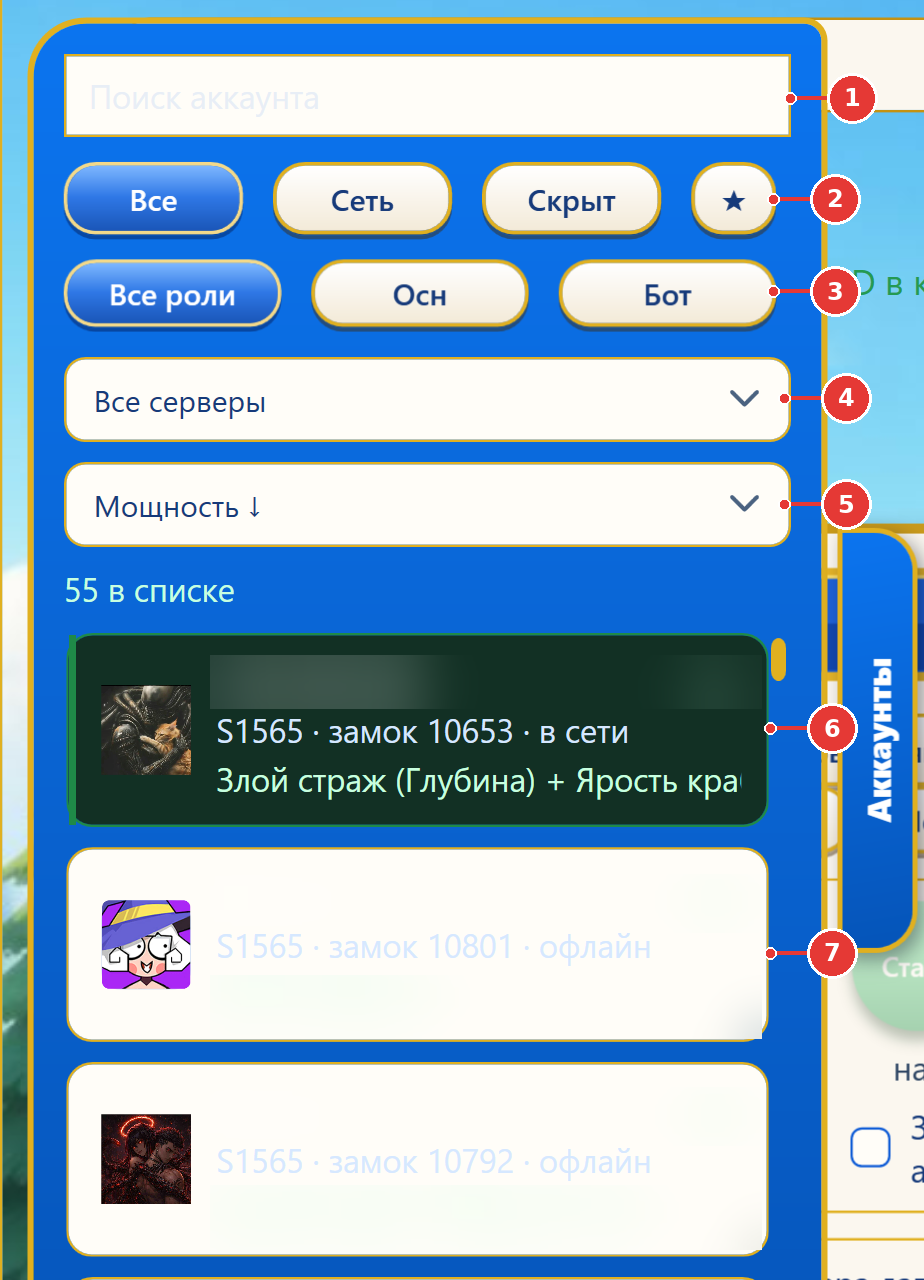
- 1Search by name, email or ID.
- 2Filters: All / Online (connected only) / Hidden / ★ favorites.
- 3Role: all, “Main” or “Bot” (farm accounts). Change a role by right-clicking a card.
- 4Server (kingdom) — shows only characters from one server.
- 5Sorting: power, castle, name. Cards whose login has expired always float to the top.
- 6Online card: server, castle level, “online” and what it is doing right now.
- 7A pale card means the character is offline. Select it and press “Connect”.
Right-clicking a card opens a menu: favorite (★), role (Main/Bots), hide, delete. The “Disconnect session” button on the tab logs out only this character.
2.6. Second device, Telegram, server, autostart
| What | How |
|---|---|
| An Android phone on the same license | One license = 1 PC + 1 Android phone. On the PC press the Android link button (Привязать Android) — a code appears; enter it on the phone via “Enter a license code”. |
| Telegram remote | Send your HWID to @Kingdomguardonline_bot. The program shows a “Telegram binding” window → Confirm. From Telegram you can see status and start or stop farming and quests. If the request isn’t yours — “Decline”. |
| Project server | Shield → “Server”: “Moscow server” or “Germany server”. By default the one with the best ping is chosen. Switch if things feel slow. |
| Autostart | Shield → “Start with Windows”. |
| Log out everywhere | Shield → “End all sessions” — disconnects every character. |
2.7. Your first 10 minutes: what to turn on
- Connect your character and tick “Connect automatically on startup”.
- “Quests\Collect” tab: press “Select all”, then “Launch automatically” — the bot will collect mail, rewards, alliance gifts, the mine and dailies by itself.
- “Farm” tab: in “Script for all” pick e.g. “Gold Mine” or “Titan” → “Apply” → “Start”. Tick “Launch automatically”.
- If your alliance runs Groot — set up the “Groot” tab to your alliance’s schedule.
- After an hour, look at the “Statistics” tab to see what got done.
3The program window
The window has a header, tabs, the work area of the current tab, the account list (slides out on the right via “Accounts”) and a bottom panel with the chat and the “What the bot does” feed.
3.1. The shield menu
| Item | What it does |
|---|---|
| Profile | Your license, plan and subscription end date. |
| Plan change | Switch to another plan (the old auto-renewal is cancelled, remaining days are lost). |
| Add account | Login window: email + code, VK (section 2.3). |
| Choose characters | Which characters from an email occupy your plan slots (2.4). |
| Server | Project server: Moscow or Germany. |
| Friend code / gift | Your friend code, entering a friend’s code and a gift code. |
| End all sessions | Disconnect every character. |
| Start with Windows | Start the program automatically. |
| Help | The program’s built-in help. |
| Check for update | See whether a new version is out. |
| About | Version and info. |
| Report an error | Describe what happened and what you clicked. A diagnostic log is attached automatically — without passwords or tokens. |
| Exit | Close the program. |
3.2. Header, bell, language
The header holds the “Basic / Farmer” mode switch, two clocks — UTC+0 (game time) and your local time — the language selector (Russian, English, Chinese) and the bell. The bell collects notifications: a fresh code login is needed, the Mithril timer ran out, support has replied.
3.3. Chat and the “What the bot does” feed
At the bottom of every tab you’ll find the game chat (read and write as your character) and the bot’s activity feed. If you’re not sure what a character is up to, check the feed.
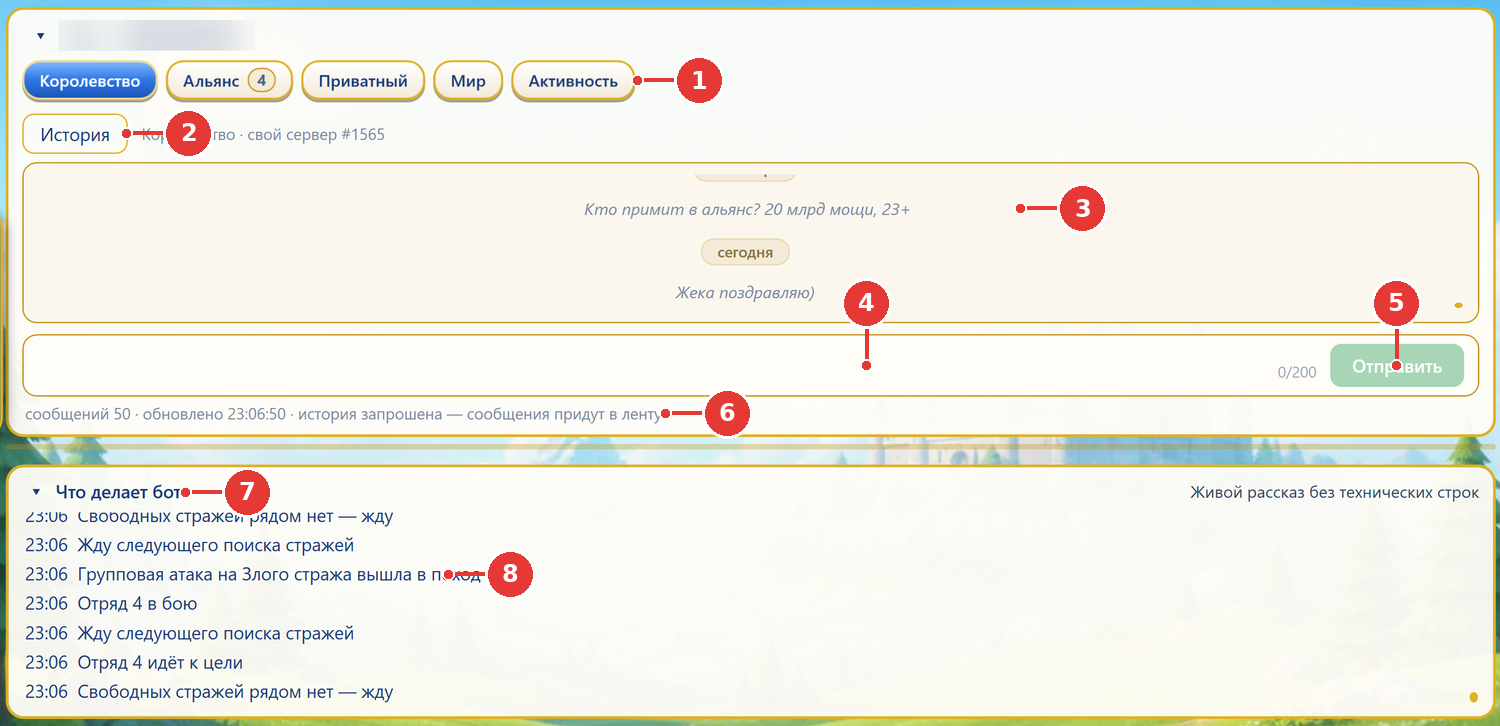
- 1Game chat channels: Kingdom, Alliance, Private, World, Activity.
- 2“History” — load older messages of the channel.
- 3Messages of the selected channel.
- 4Input box: Enter sends, Shift+Enter starts a new line.
- 5“Send” — the message goes into the game from this character.
- 6Service line: how many messages and when it was last updated.
- 7“What the bot does” — a live, plain-language feed of what the selected character is doing.
- 8Feed entries with timestamps (local time).
When a character disconnects, a “What the bot did” window may pop up with totals for the session, today and all time. Tick “Don’t show again on disconnect” to stop it.
4Key concepts
4.1. The game day and UTC
| What resets | When (UTC+0) |
|---|---|
| Daily quest limits, Mithril (searches/attacks), Exploration food, daily slots of the Mithril and Alliance shops, the Wishing Well daily limit | every day at 00:00 UTC |
| VIP Store limit, weekly shop slots, Lava Cave, Alliance Challenge | Monday 00:00 UTC |
| Haka Behemoth | Monday 00:00 — Friday 23:59 UTC |
| Dragon Valley | battle at 01:00, 09:00, 13:00 or 17:00 UTC (chosen by R4/R5) |
4.2. What “Launch automatically” means on each tab
This checkbox appears on many tabs, and everywhere it means “do this by yourself, without me pressing anything”. But what “this” is differs per tab:
| Tab | What the bot does by itself when it’s ticked |
|---|---|
| Farm | Once the character connects, farming starts with every squad that has a script assigned. |
| Quests\Collect | Takes on checked open quests by itself, within their limits. |
| Groot | (called “Run in background on schedule”) — goes to Groot on the checked days and hours. |
| Shop | Buys the chosen slots on a UTC schedule; if the character was offline — on its first connection. |
| Mithril | Re-places squads on a timer, even while farming. |
| Lava Cave | Enters every 2.5 hours until the weekly reset. |
| Exploration | Runs every 3 hours. |
| Dragon Valley | (“Start on schedule”) — enters the field before the battle according to the schedule. |
| Evil Spirit Battlefield | Joins the battle as soon as the server opens the wave window. |
| Farmer → “Farm on selected” | Its own checkbox, off by default: reconnects dropped characters, resumes farming after a restart, runs the Lava Cave and collects the Dragon King’s gifts (section 20). |
4.3. What can spend Gems and resources
| Feature | What it spends | Where |
|---|---|---|
| VIP Store: “Buy” and auto-buy | Gems | Shop → VIP |
| “Buy food with crystals” | 500 Gems per purchase, up to 40 purchases a day | Exploration; Quests |
| “Buying up AP Recovery” / “Action Point Recovery” | Diamonds: the first costs 200, then more (the 2 free ones a day are separate) | Quests; Farmer |
| “Alliance Challenge” | 5 Gems for each slot refreshed | Quests; Farmer |
| Wishing Well | Diamonds (bets) | Wishing Well |
| “Upgrade “Season Resistance” with Crystals” | season crystals (not Diamonds) | Farm / Quests (The Deep season) |
| “Upgrade (spends resources)” | upgrade materials (books, hammers, runes…) | Calculator |
| “Power Recovery” | recovery scrolls | Quests (only when ticked) |
| “Use AP automatically”, “Apply AP” | AP vials | Farm |
| Buying recruitment cards, Mithril and Alliance shops | gold, Mithril coins, Alliance Silver | Quests; Shop |
The bot never uses the paid (Diamond) Mithril search.
4.4. One queue per character
Each character has a single action “queue”. When a one-off job runs (for example “Execute All” on the quests tab, or a Farmer batch step), farming may pause for that time and then resume by itself. Background timers (Groot, the Mithril timer, the shop) run in parallel and don’t tie up the session.
5The “Farm” tab
What it does. Keeps the selected character’s squads busy in a loop. You assign each squad (slot) a “script” — what it should do (gather gold, hit Titans, Dark Priests, crabs and so on) — and press “Start”. The squad finds a target, marches, fights or gathers, comes back and starts again.
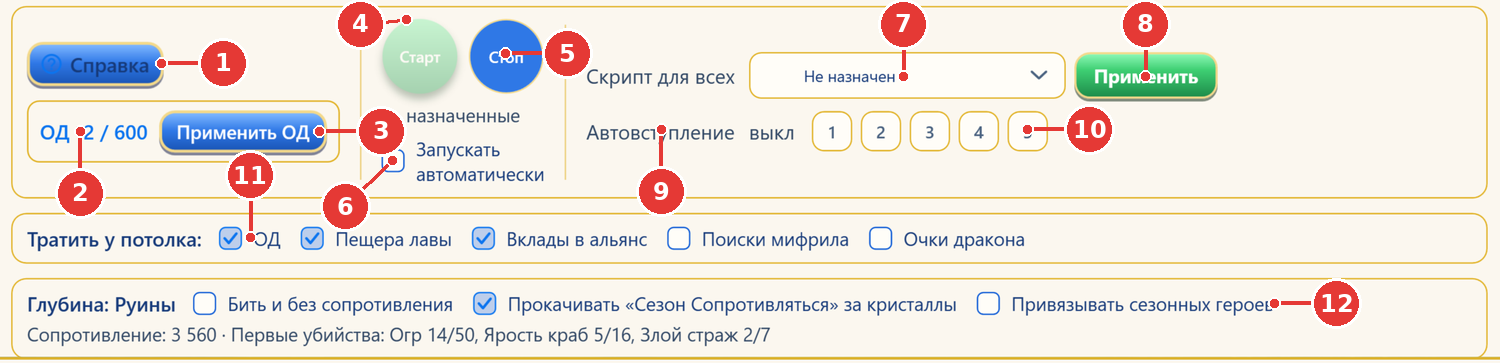
- 1“Help” — built-in help for the Farm tab.
- 2AP: current Action Points / natural regeneration cap.
- 3“Apply AP” — drink AP vials in the amount you choose.
- 4“Start” — starts every free squad that has a script assigned.
- 5“Stop” — stops farming for all squads of this character.
- 6“Launch automatically” — once the character connects, farming starts by itself with the assigned squads.
- 7“Script for all” — pick one script…
- 8…and “Apply” — assign it to every squad at once.
- 9Auto-join rallies — this is the game’s own setting.
- 10Buttons 1–5 — which squads auto-join. A “Refresh” button appears; press it to apply.
- 11“Spend at the cap” — every 10 min the bot spends whatever has hit its cap (AP, cave, contributions, Mithril).
- 12“The Deep Ruins” block (only during The Deep KvK season): resistance, first kills, crystal spending.
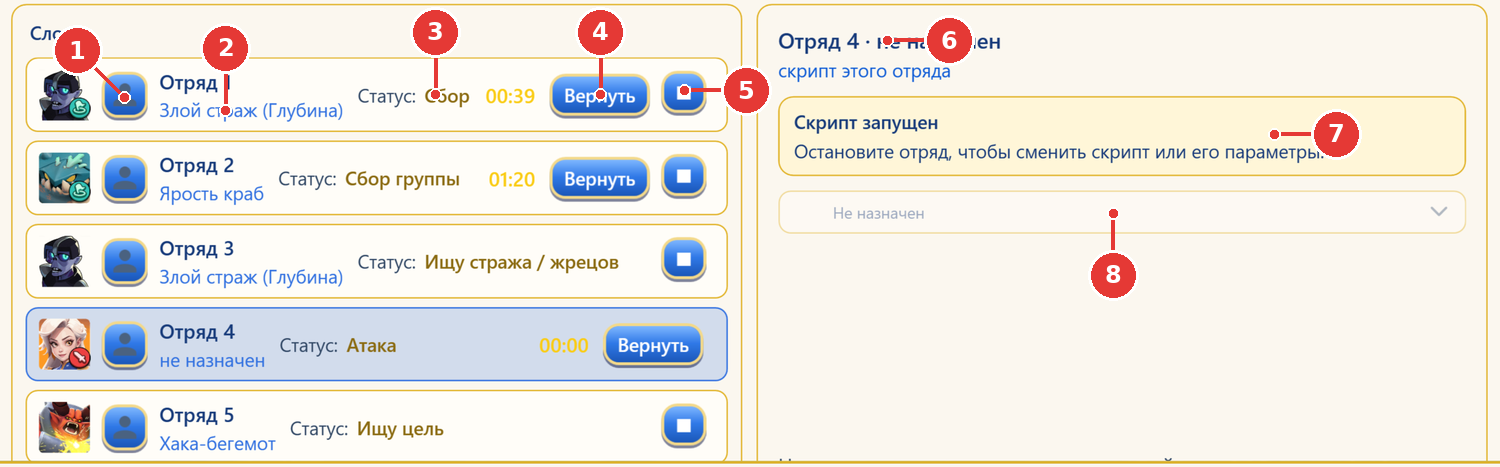
- 1Squad lineup button: view/change heroes, save a lineup.
- 2Squad number and the script assigned to it.
- 3Status: “Gathering”, “Rallying”, “Looking for a target”, “Attack”… plus a timer to arrival/return.
- 4“Recall” — disband the rally or bring the squad home.
- 5■ / ▶ — stop or start the script of this squad only.
- 6Mini settings of the selected (highlighted) squad.
- 7While the script is running, its settings are locked: stop the squad first.
- 8Squad script picker. The script’s own fields (level, km, AP…) appear below.
Step-by-step setup
- Connect the character. Until the squads load from the game, the slot list is empty — give it a few seconds.
- Quick, for everyone: choose a script in “Script for all” and press Apply. That list holds: not assigned, mines (Gold Mine), titans, priests, priests + guards.
- Or one by one: click a squad on the left and choose its script and parameters in the mini settings on the right.
- Press Start — every free squad with a script goes out. The ▶ / ■ buttons on a squad start or stop only that one.
- Tick “Launch automatically” so farming starts on its own after every connection.
Squad scripts
| Script | What it does and limits |
|---|---|
| Not assigned | The squad is skipped on “Start”. |
| Gold Mine | Sends the squad to a gold mine. Mine level: home 1–5, KvK 4–6; if there’s no mine of that level, a neighbouring level is used. In 3.0.45 a squad back with gold goes straight out again; the “repeats” counter no longer limits it. |
| Titan | Loops on Titans. At home it searches from level 15 downward (15, 14…) no farther than “max. distance” (300 km by default). On KvK — level 16 with no distance limit. Spends AP. |
| Monsters | Farms monsters on the map. Spends AP. |
| Haka Behemoth | Personal boss. One squad only. Window: Mon 00:00 — Fri 23:59 UTC, closed on Saturday and Sunday. “how many to kill” or “All” (until summons run out). |
| Frost Behemoth | KvK only, from week 2 of the Burning Expedition. One squad. Hits while the Behemoth’s level is no higher than “maximum level”. |
| Wolf Trial | Hits your own wolf. If the squad is less than 20% stronger than the wolf, it rallies straight away. “Assist Allies” — your strongest free squad hits wolves your allies asked help with. |
| Fishman Hunter | KvK only, first week of the expedition. |
| Crab Encirclement | KvK only, first week. A weaker squad takes low levels, a stronger one high levels. |
| Crab Encirclement: join | Joins other players’ crab rallies. KvK only, first week. |
| Realm Adventure | The “Realm Adventure” event. One squad. |
| Dark Priest | KvK only: priests around the Evil Guard, loops while there are targets. |
| Dark Priest + Evil Guard | KvK only and only via “Script for all”: 3 squads → 2 on priests + 1 rallying the guard; 4 → 2+2; 5 → 3+2. |
| Rage Crab, Evil Guard (Deep), Ogre: First Kills | Only during The Deep Ruins season. |
Script settings (mini settings on the right)
| Setting | Meaning |
|---|---|
| mine level | Gold mine level (home 1–5, KvK 4–6). |
| max. distance (home) | Titans farther than this are skipped. Home server only. |
| Use AP automatically | On “not enough AP” the bot drinks 200-AP vials; farming continues while you have vials. |
| Spend (200–10,000) | Drink vials, but no more than this amount per run, then stop. With both boxes unticked only your current AP is used, then it stops. |
| Camp after kill | After a fight the squad stays camped and the nearest squad takes the next target. Unticked — wait for the squad to return to the castle. |
| Ignore level 10 | Don’t hit level-10 crabs. |
| Attack other players’ crabs | Hit every crab on the map, whoever summoned it. Unticked — only your own. |
| Join level 10 only / Join allies | For “Crab: join”: only level-10 rallies; also rallies of allied alliances. |
| maximum level (Behemoth) | Up to which level to hit the Frost Behemoth. Next to it — how many you’ve killed. |
| group limit | Minimum squad strength to join a rally. “Auto” — based on the Behemoth’s level. |
| how many to kill / All (Haka) | Kill limit per run, or until summons run out. |
| Set the Rally threshold to 10B (for alts) | Minimum squad strength to join a rally — 10 billion. |
| difficulty (Wolf) | Difficulty is chosen once per event. Auto — based on squad power. |
| Evil Guard level (Deep) | Auto or 1–7. Auto — the level of the next first kill, or the highest level your resistance allows. |
The top panel
- AP — current Action Points / natural regeneration cap. Apply AP opens the “Use AP” window: choose how many vials (5, 10, 20, 50, 100, 200 AP) to drink. No vials — the status says “No AP flasks in inventory”.
- Auto-join 1–5 — the game’s own setting: which squads join rallies by themselves. Tick the squads and press Refresh (it only shows when your ticks differ from what’s set in the game). Untick all and refresh to turn auto-join off.
- “Spend at the cap” — every 10 minutes the bot checks counters and spends only what has hit its cap. All off by default:
- AP — surplus AP goes into Titans (or monsters if they are in your slots). Only when farming isn’t running; AP from vials is left alone.
- Lava Cave — moves/attacks at the cap — the bot runs the cave.
- Alliance contributions — surplus contribution points go into alliance tech.
- Mithril searches — the bot attacks mines; only when farming isn’t running and more than 10 attacks are left today.
- Dragon points — the bot can’t spend them yet (they are the Tower Defense energy).
- “The Deep Ruins” (only in that KvK season): “Attack even without resistance”, “Upgrade “Season Resistance” with Crystals” (💎 season crystals, not Diamonds), “Link season heroes”.
Common mistakes
- You press “Start” and nothing happens — no squad has a script, or all squads are busy. The status explains why (no squads, Haka/Behemoth outside its window).
- The script won’t change — it’s running (“Script Started” banner). Press the squad’s ■ first.
- Priests are “unavailable” — your castle isn’t on the KvK map.
- Titan farming stopped — you ran out of AP. Turn on “Use AP automatically” or “Spend”.
FAQ
- Can different squads run different scripts?
- Yes, assign each squad its own script in the mini settings.
- Why aren’t Haka and the Behemoth in “Script for all”?
- They are single-squad scripts, so you set them on a slot.
- What does “Recall” do?
- Disbands your rally or brings the squad home. A return timer appears.
6The “Quests\Collect” tab
What it does. Collects all the “dailies”: mail, rewards, alliance gifts, the mine, free AP, red envelopes, station quests, the daily quest board, Exploration and much more. Each quest is done as many times as the game allows and then moves to “Completed”.
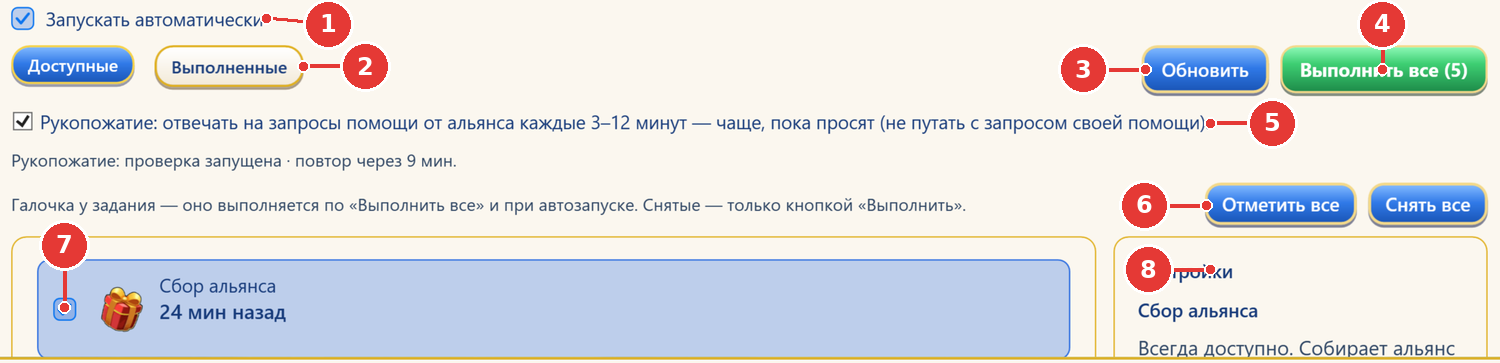
- 1“Launch automatically” — the bot takes on open quests by itself, within their limits.
- 2Lists: “Available” (can be done) and “Completed” (done for today/this week).
- 3“Refresh” — ask the game again for the quest status.
- 4“Execute All (N)” — run every checked quest one after another.
- 5Handshake: answer alliance help requests every 3–12 minutes.
- 6“Select all” / “Clear all” — check or uncheck every quest.
- 7Quest checkbox: whether it is part of “Execute All” and of autopilot.
- 8“Settings” — description and fields of the selected quest, plus an “Execute” button.
Step-by-step setup
- Open the tab — the bot asks the game for quest status and sorts them into “Available” and “Completed”.
- Press “Select all”, or tick only the quests you want.
- One-off: Execute All (N). Ongoing: “Launch automatically”.
- Turn on the Handshake to answer alliance help requests every 3–12 minutes.
- Click a quest — on the right, “Settings” show its description, fields and an “Execute” button for that quest alone.
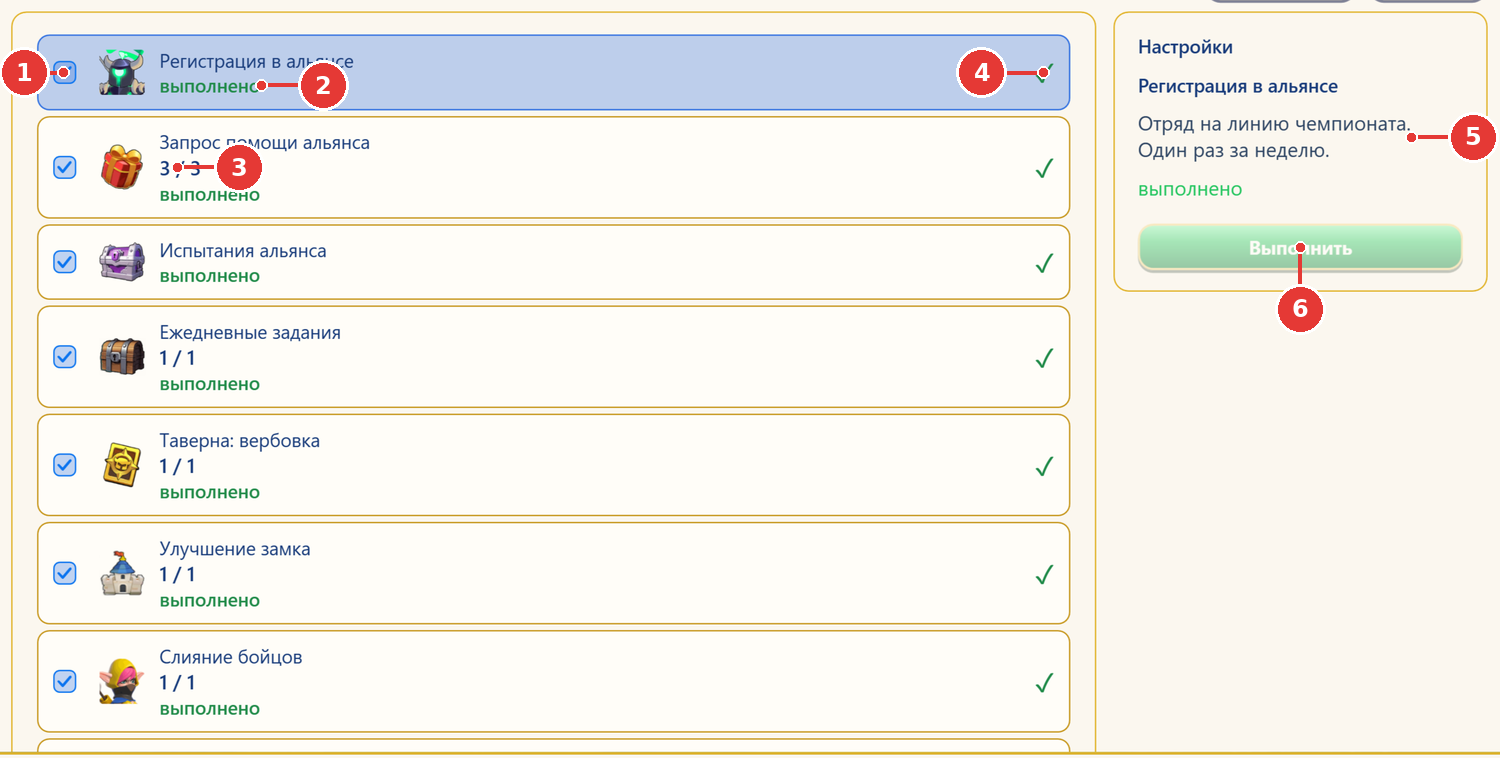
- 1Checkbox — the quest takes part in autopilot and “Execute All”.
- 2Status “done” — the quest is closed for this day (or week).
- 3Limit counter: 3 / 3 — done as many times as the game allows.
- 4Green tick — finished.
- 5Description of the selected quest: what it does and how often.
- 6“Execute” — run only this quest manually.
Quest list
| Quest | What it does · how often |
|---|---|
| Alliance Collection | Gifts, “help everyone”, rare gift and chests, territory, contribution to the favourite tech, Alliance Challenge rewards. |
| Alliance Help Request | Request resources by castle level. Up to 3 times a day. (Not the same as the Handshake.) |
| Alliance Challenge 💎 | Checks 20 slots and refreshes the non-gold ones — 5 Gems per slot. Until Mon 00:00 UTC. |
| Daily Quest | Clears the daily board by doing the actions (help, contribution, mine, secret quests, tavern, castle, merging and training units, hero, dragon, gold; “Use AP” — Titan rallies at 20 AP each) and claims the rewards. The board skips anything you’ve unticked. |
| Daily quest rewards | Every 20 minutes claims rewards of finished dailies and activity chests. Doesn’t perform anything itself. |
| Tavern: Recruitment | Free advanced recruitment and rounds with cards, up to 5 a day. Never spends Gems. |
| Castle Upgrade / Hero Upgrade, City Tech | Exactly +1 level for the daily, once a day. Tech — the cheapest one, no gold. |
| Merge Units, Unit Training | Close the dailies “Use auto-merge”, “Merge units N×”, “Train N TD units”. Once a day. |
| Stages: catch up to the required one | Plays defense waves up to stage 20 (without it the castle can’t pass a threshold). In auto mode only when ticked; checked every 6 hours. |
| Claim all available rewards | All ready rewards from the server. |
| Dragon King’s Gifts | Dragon Den: 12 gifts a day; claims ripe ones every 30 minutes. |
| Airship gift | Once a day: “Elite Card” daily reward, weekly cards, the free chest. |
| Allies’ realm chests | “Realm Adventure”: every 30 minutes, no more than 30 rewards (the event limit). |
| Kingdom Treasure | Digs only the treasure tiles with shovels. Thickets and the compass — separate checkboxes. |
| Goddess Trials: Gift | Claims the gift at the statue (visit daily — some rewards expire). |
| The Deep: crystals and season rewards | Only in The Deep Ruins, every 3 hours. Spends pearls and crystals and links heroes only per your checkboxes. |
| Collect All Mail | Attachments from every mail tab. Once a day. |
| Collect Resource Mine | Offline income, ×3 when available. Once a day. |
| Free AP | Two free AP refills of 25. Once a day. |
| Buying up AP Recovery 💎 | Paid AP slots, up to 10 a day; the first costs 200 Diamonds. Amount — slider. |
| Power Recovery | Restores power of squads at home with scrolls. Spends scrolls — in auto mode only when ticked. At most once an hour. |
| Buying recruitment cards | Regular cards for gold (up to 2,000 at a time). Once a day. |
| Element Lords | 5 attacks with your strongest squad + daily rewards. Once a day. |
| Jennifer’s Station | Station quests and rewards; refreshes recover 1 every 4 hours. |
| Collecting Red Envelopes | Red envelopes from the alliance chat. |
| Lava Cave reward collection | Stage rewards and the full-clear reward. |
| Secret Quest: Assist Allies / send SSR+ | Helps allies up to 5 times a day; refreshes the board until SSR or special appears, then dispatches. |
| Food for Crystals 💎 · Exploration — Travel | See the “Exploration” tab (section 12). |
| Alliance registration (championship) | A squad on the championship line, once a week. |
| Groot / Alliance Altar | See section 7. |
Common mistakes
- A quest “isn’t being done” — it’s unticked. Without the tick it’s skipped by autopilot, “Execute All” and the daily board.
- “Power Recovery”, “Stages” and “The Deep” don’t run in auto mode without the tick on the left — by design.
- You expect a quest to repeat today — it’s already in “Completed” until 00:00 UTC.
- How is the Handshake different from a Help Request?
- Handshake — you help others (every 3–12 min). Help Request — you ask the alliance for resources (up to 3 times a day).
- Why did a daily reward come later?
- Many quests count only when a squad returns or an ally asks for help. “Daily quest rewards” will claim them within 20 minutes.
7The “Groot (Alliance Altar)” tab
What it does. At the set time it sends your squads to Groot: squad 1 starts its own 5-minute rally, the others join allies’ rallies. It runs on a background timer and doesn’t tie up the session. The Groot window is 90 minutes. After a win the bot claims the “Alliance Treasure” and rewards.
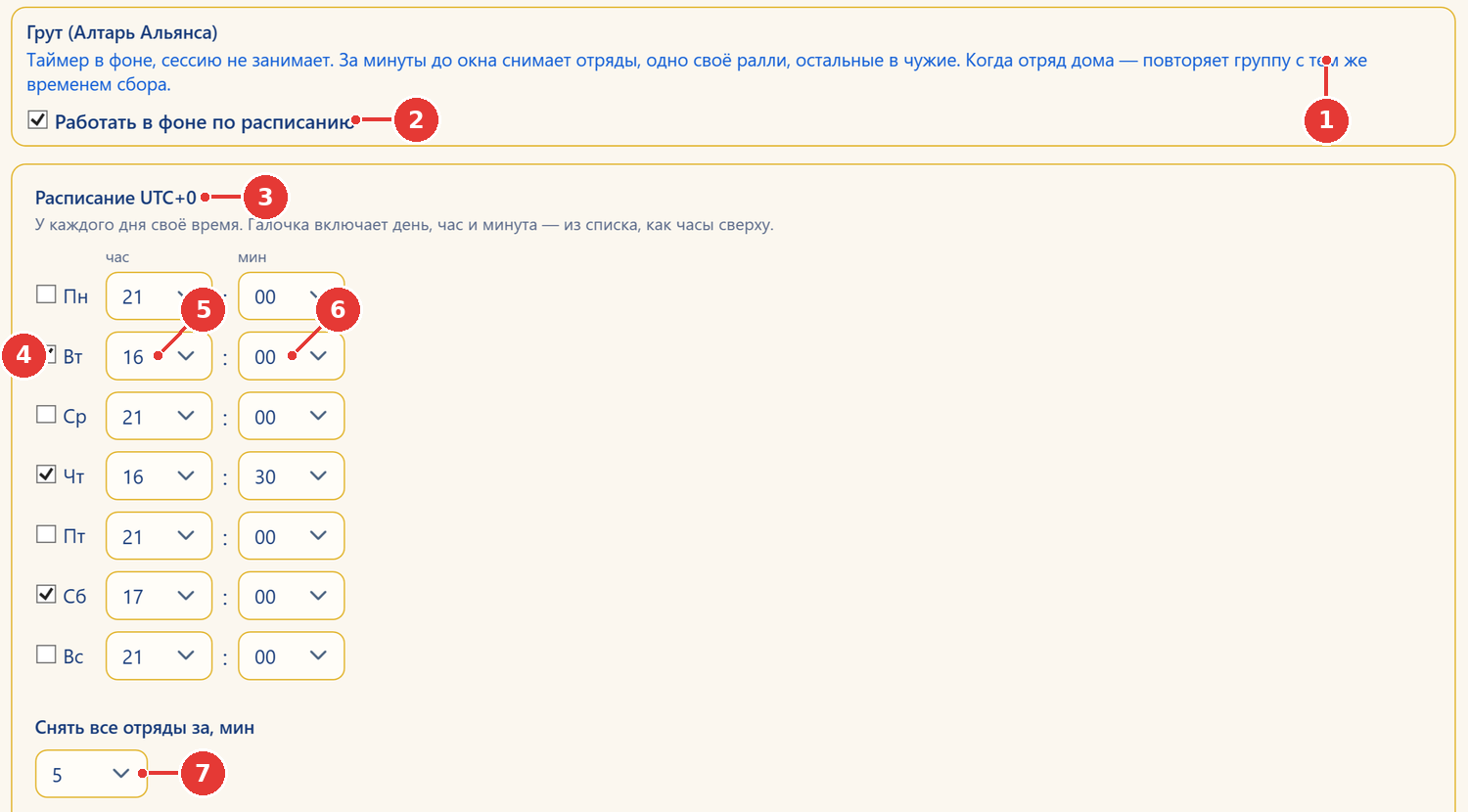
- 1How it works: a background timer that does not tie up the session; one rally of your own, the other squads join allies’ rallies.
- 2“Run in background on schedule” — the main Groot switch.
- 3Schedule in UTC+0 — each day has its own time.
- 4Day checkbox — the bot goes to Groot on that day.
- 5Window start hour (UTC+0).
- 6Window start minutes.
- 7“Recall all squads before start, min” — how many minutes before the window to pull squads off every task.
- Ask your R4/R5 for Groot days and times and convert them to UTC+0.
- Tick the days and set the start hour and minutes.
- “Recall all squads before start, min” — how many minutes before the window to pull squads off every task (so they make it home).
- Turn on “Run in background on schedule”.
- Time entered in your local time instead of UTC — the bot shows up hours late or early.
- The program was closed at that time — the schedule may not have fired. Keep it running.
8The “Shop” tab
What it does. Buys what you want in three shops: VIP (for Gems), Mithril (for Mithril coins) and Alliance (for Alliance Silver) — right away or on a schedule.
VIP Store 💎
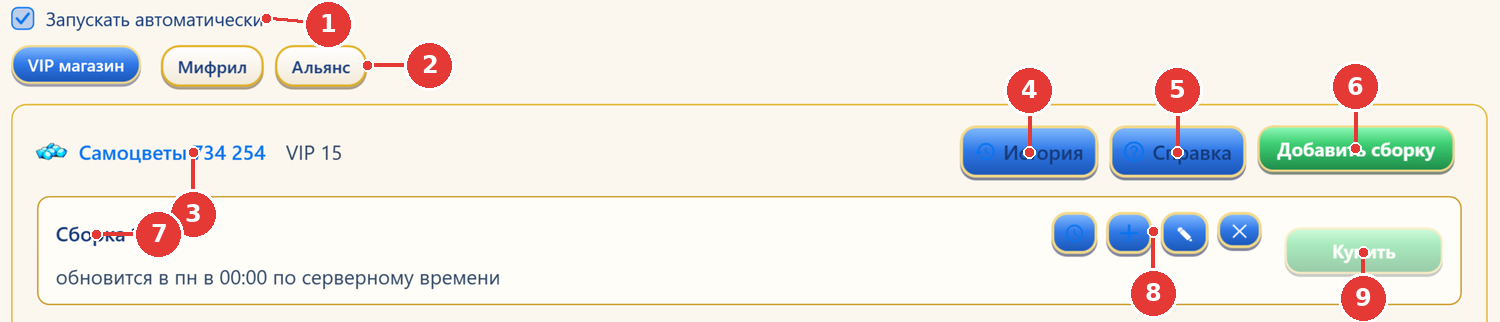
- 1“Launch automatically” — buys on a UTC schedule, even while farming.
- 2Three shops: VIP, Mithril, Alliance.
- 3Your Gem balance and VIP level.
- 4Purchase “History”.
- 5“Help” on VIP loadouts.
- 6“Add Loadout” — build a list of the VIP Store slots you want.
- 7Loadout: name and when its limit resets (Mon 00:00 UTC).
- 8Loadout buttons: clock — auto-buy, plus — contents, pencil — rename, cross — delete.
- 9“Buy” — buy the remaining limit of the checked slots (with Gems!).
- Press “Add Loadout”. Slots of your VIP level appear, grouped by VIP tier. Grey ones are out of stock this week.
- Tick the slots you want. Quantity can’t be chosen — the slot’s whole limit is bought. The Gem total is shown at the top.
- “Save build”. A loadout only saves the list — it buys nothing.
- To buy: the Buy button on the loadout. Afterwards a window shows what was bought, what wasn’t and how many Gems were spent.
- Auto-buy: the clock icon on the loadout — day and time (UTC). If the character is offline at that moment it buys on the first connection. Tick “Launch automatically”.
Mithril and Alliance
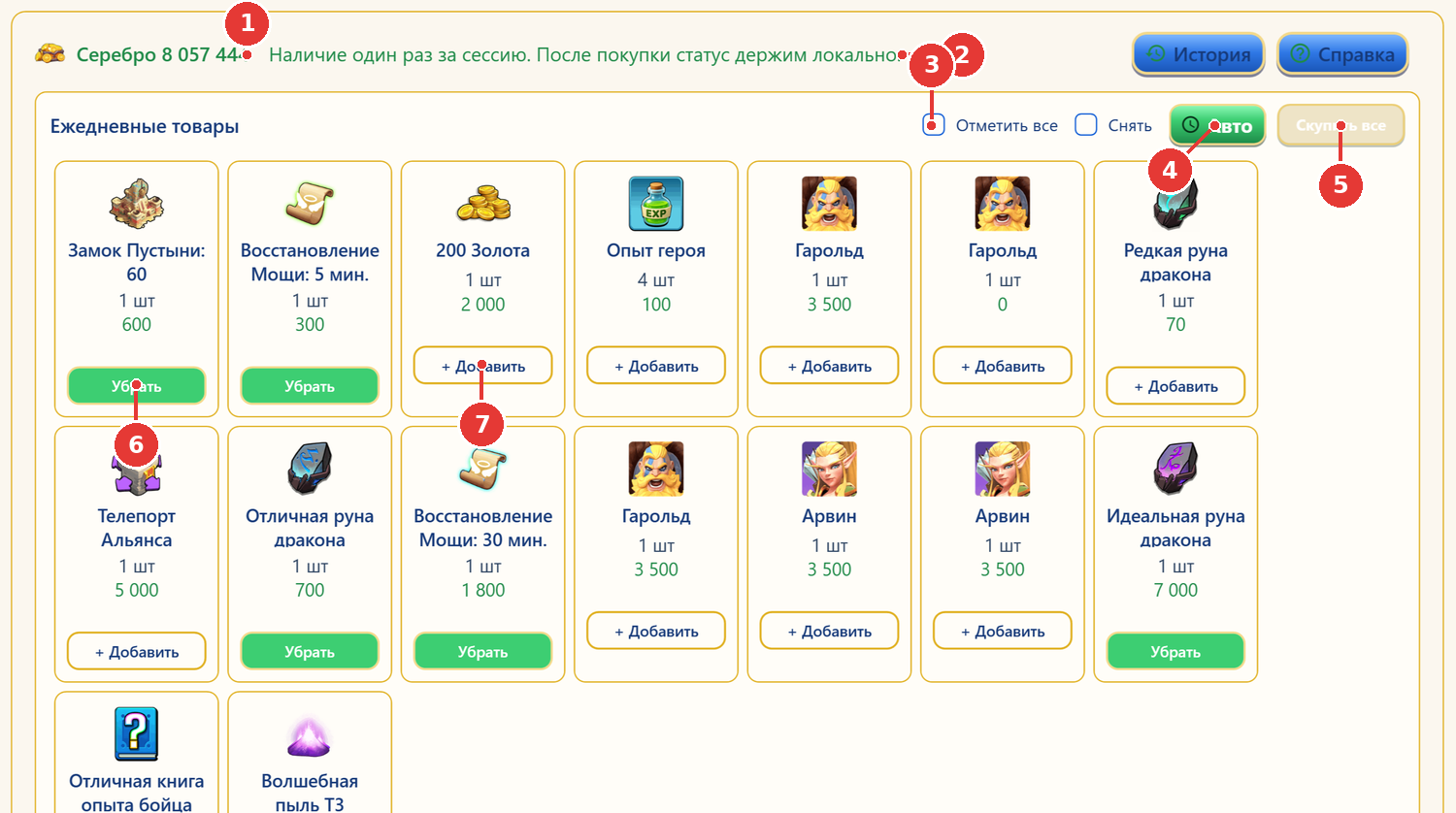
- 1Alliance Silver balance.
- 2Stock is requested once per session; after a purchase the status is tracked locally.
- 3“Select all” / “Clear” — toggle every slot in the row.
- 4“Auto” — auto-buy schedule for this row (UTC).
- 5“Buy All” — buy the marked (green) slots.
- 6A green “Remove” button means the slot is marked for purchase.
- 7“+ Add” — mark a slot.
- Two rows: daily (reset 00:00 UTC) and weekly (reset Mon 00:00 UTC). In the Alliance shop — daily shelves 1–3 and weekly shelves 1–4; higher shelves unlock with alliance tech, locked ones are grey.
- “+ Add” on a card marks the slot (the button turns into a green “Remove”). Buy All buys only the marked ones. Quantity — whatever is left in the slot.
- “Auto” on a row — auto-buy schedule (UTC).
- Stock is requested from the game once per session; bought slots show “Purchased” until the program restarts.
- After switching alliances the game may block Alliance shop purchases for 24 hours or 7 days — that’s a game rule, not the bot.
- The character must be online or the purchase fails (auto-buy waits for the connection).
- Does every character have its own loadouts?
- Yes — loadouts, marks and schedules are stored per character.
- Where can I see what was bought?
- The “History” button in the tab header.
9The “Calculator” tab
What it does. Reads your resources and levels from the game and works out how far you can upgrade the castle, heroes, dragon and more with what you already have. If you like, the bot will then perform the upgrade in the game.
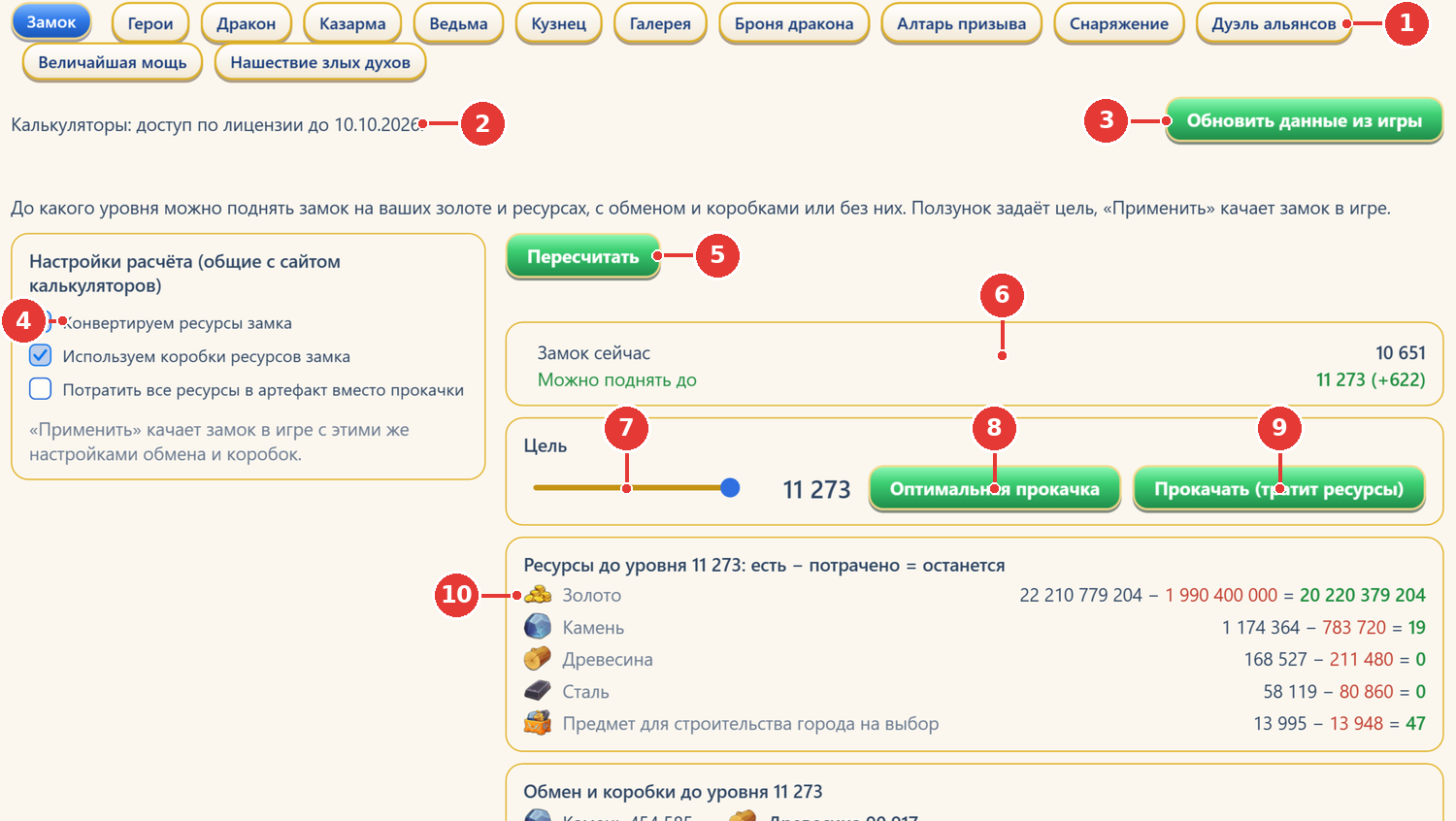
- 113 calculator sections: Castle, Heroes, Dragon, Barracks, Witch, Blacksmith, Gallery, Dragon Gear, Summon Altar, Gear, Alliance Duel, Ultimate Power, Evil Spirit Invasion.
- 2Access: with a license (or during the trial).
- 3“Update data from the game” — pull the character’s fresh resources and levels.
- 4Calculation settings (shared with the calculators website): resource exchange, boxes, artifact.
- 5“Recalculate” — run the numbers again with the current settings.
- 6Result: current level and how far you can upgrade.
- 7“Target” slider.
- 8“Optimal upgrade” — set the best reachable target.
- 9“Upgrade (spends resources)” — the bot really upgrades in the game up to the target.
- 10Table: have − spent = left, for every resource.
- Choose a section on the left.
- Update data from the game — pull the character’s fresh resources and levels.
- Check the calculation settings (resource exchange, boxes, artifact) and press “Recalculate”.
- Read the result: “now → can reach” and the table “have − spent = left”.
- Move the “Target” slider or press “Optimal upgrade”.
- If you want the bot to upgrade in the game — Upgrade (spends resources).
| Section | What it calculates |
|---|---|
| Castle | How high you can raise the castle with your resources. |
| Heroes | Hero stars from cards and selector cards; a plan for distributing selector cards. |
| Dragon | Dragon upgrades with your resources (runes, emblems). |
| Barracks | Units and talents from barracks books; spare books go into the artifact (once every element is at rank 9). |
| Witch | Light magic and witch gems from light reagents and potions. |
| Blacksmith | Forge level from forge hammers; spare hammers go into the artifact (from forge level 2000). |
| Gallery | Painting tiles from shards. |
| Dragon Gear | Dragon gear upgrades. |
| Summon Altar | How far you can raise altar beasts with your summoning spells. |
| Gear | Gear upgrades from Elemental Vials, titan blood and forge blueprints. |
| Alliance Duel | Event points per day and a plan of the most efficient upgrades. |
| Ultimate Power | An upgrade plan for the ranking spot you want. |
| Evil Spirit Invasion | Wave power and event points for a given level and number of participants (no character data needed). |
Calculator access requires a license or the trial.
10The “Mithril” tab
What it does. Places your squads on Mithril stones (basic and advanced) and attacks other players’ Advanced Mithril stones. It only uses free searches — the bot never uses the paid Diamond search.
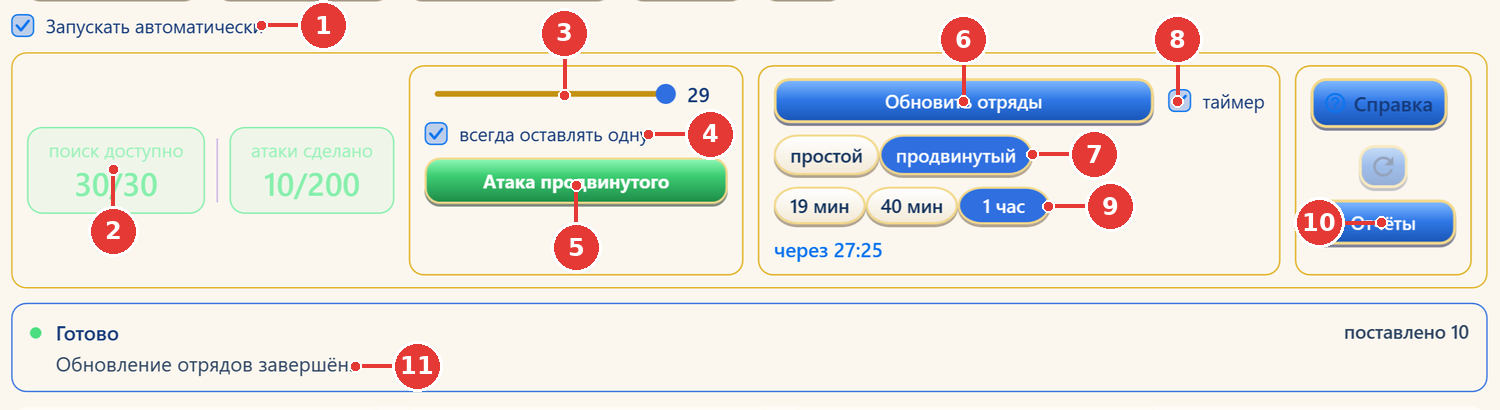
- 1“Launch automatically” — squads are re-placed on a timer, even while farming.
- 2Counters: free Advanced Mithril searches and attacks per day (limit 200).
- 3Slider — how many searches to spend (the current page is always attacked).
- 4“Always keep one” — never burn the last search.
- 5“Advanced Attack” — hit other players’ Advanced Mithril stones.
- 6“Refresh Squads” — pull all squads off the stones and place them again.
- 7Placement mode: basic or advanced.
- 8“Timer” — repeat the placement automatically.
- 9Timer interval: 19 min, 40 min or 1 hour (advanced mode only).
- 10“Help”, ↻ refresh stones, attack “Reports”.
- 11Progress line: phase, result, how many squads placed.
How an attack runs (step by step)
- If your strong squad is already sitting on a stone, it’s pulled off.
- Advanced Mithril opens and every enemy tile on the current page is attacked.
- Win — the squad is recalled and moves on. Loss — the target is skipped.
- While there’s search budget and daily attacks left, the bot flips to a new page and repeats.
- At the end the strong squad goes back onto basic Mithril. A report is written.
- Map marches and your castle position don’t interfere with Mithril.
| Setting | Meaning |
|---|---|
| search / attacks | Free searches left; attacks used of the daily limit of 200. At 200/200 the script stops. |
| Search slider | How many searches to spend after the current page. The current page is always attacked, even at zero. |
| Always keep one | Don’t spend the last search. |
| Advanced Attack | Start an attack with your strongest squad. |
| Refresh Squads: basic | Pull squads off and put them all on free basic Mithril tiles. No searches spent. |
| Refresh Squads: advanced | First fill empty advanced tiles, then flip through searches; whoever doesn’t fit goes to basic. |
| Timer 19 / 40 / 60 min | Advanced only: the bot repeats placement when the time runs out. The character must be connected. |
| Reports | A list of runs and results: name, alliance, server, power, win/loss. |
- Pressing “Attack” again while “Updating stones…” is shown — just wait.
- Confusing the green “Mithril” number at the bottom (coins) with the search counter.
11The “Lava Cave” tab
What it does. Runs the Lava Cave: spends moves and attacks, hits monsters and the boss, opens chests and, if you want, breaks boulders.
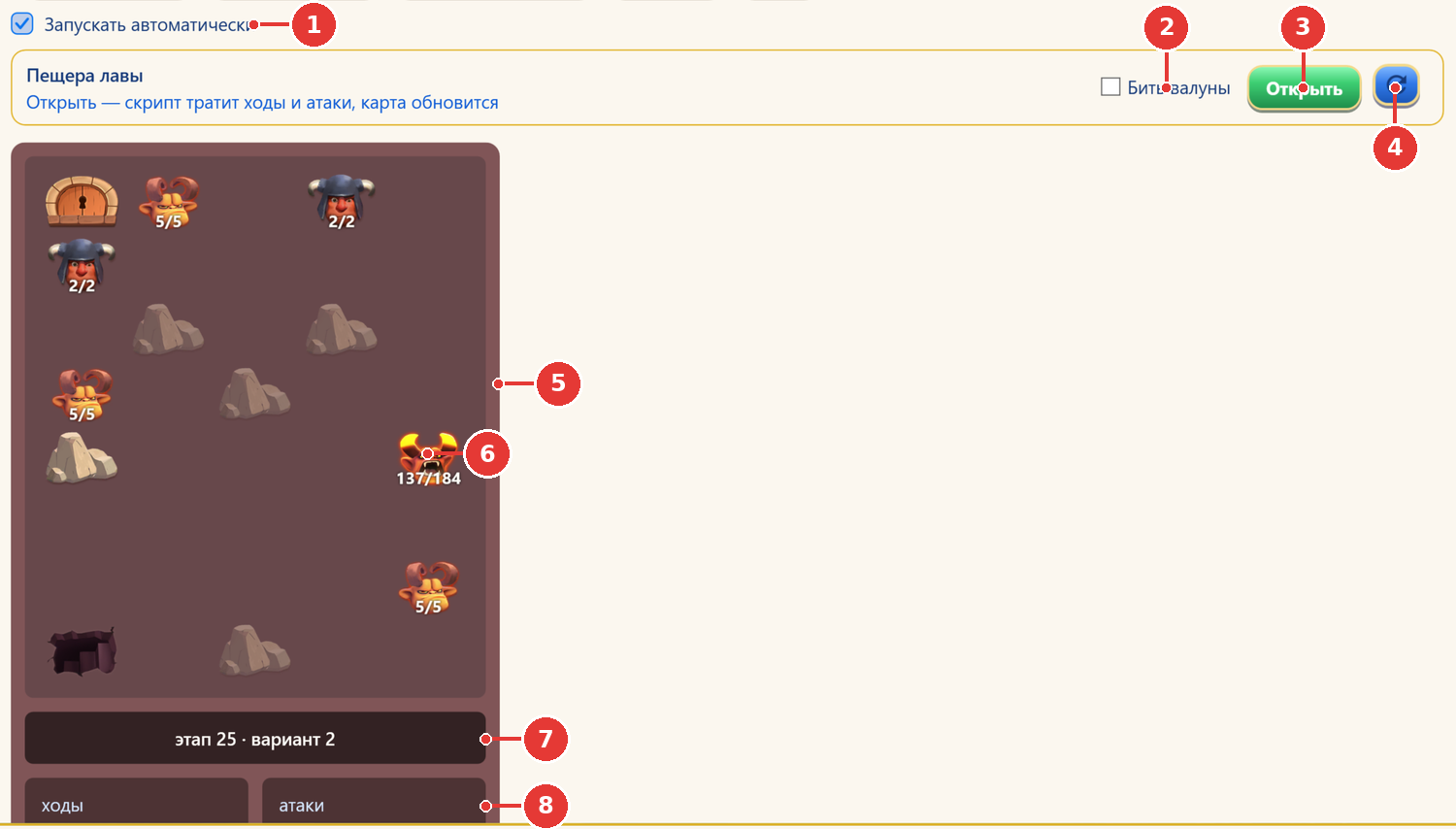
- 1“Launch automatically” — enters the cave every 2.5 hours until the weekly reset.
- 2“Break Boulders” — spend moves on boulders (each character has its own setting).
- 3“Open” — run the cave script: spends moves and attacks.
- 4↻ — refresh the map and points without a run.
- 5Stage map: chest, monsters (HP), boulders.
- 6Stage boss and its HP.
- 7Stage number and map variant.
- 8Moves and attacks the character has left.
- Press ↻ to see the map, stage and remaining moves/attacks.
- Decide on “Break Boulders” (each character has its own setting).
- Open — run it now. Or “Launch automatically” — the bot enters every 2.5 hours until the weekly reset (Mon 00:00 UTC).
Stage and full-clear rewards are claimed by the “Lava Cave reward collection” quest (section 6).
12The “Exploration” tab
What it does. Dragon cultivation: clears Exploration stages, collects Travel and hatching eggs, hatches guardian drakes and, if you want, disbands the extras.
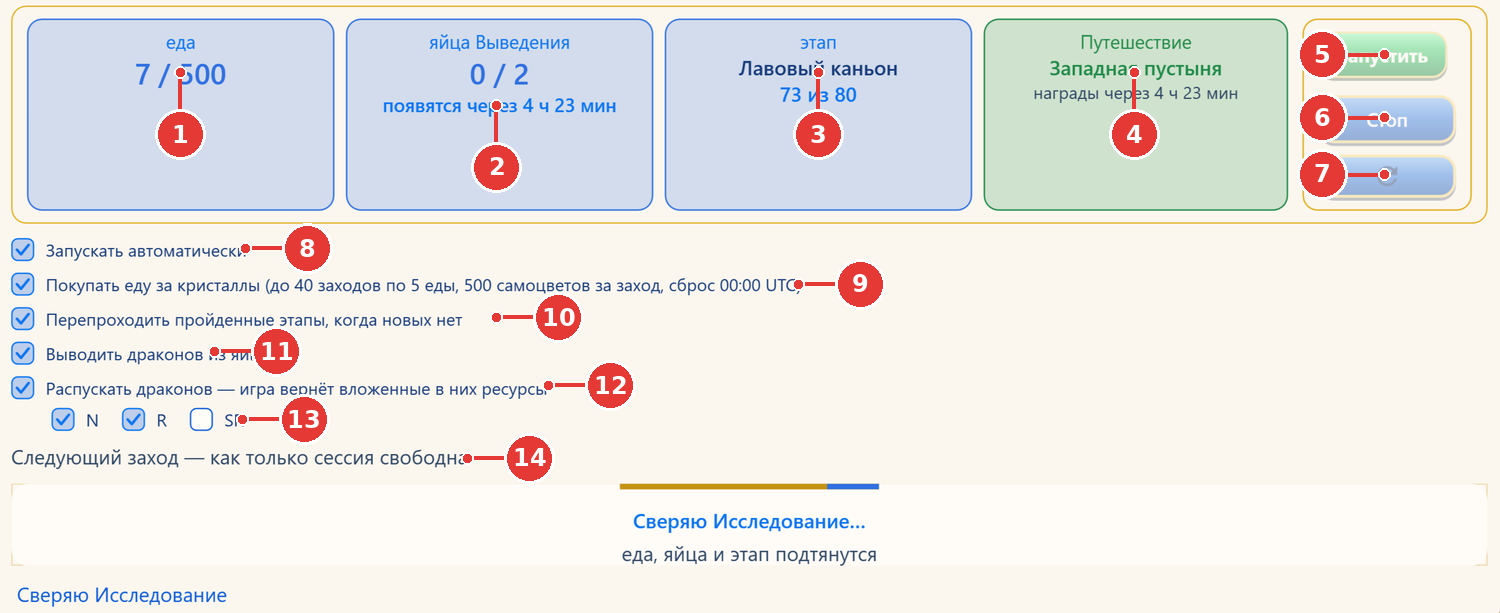
- 1Exploration food (have / max).
- 2Hatching eggs and when they arrive.
- 3Current Exploration stage.
- 4Travel and time until its rewards.
- 5“Start” — one Exploration round.
- 6“Stop”.
- 7↻ — refresh food, eggs and stage.
- 8“Launch automatically” — a run every 3 hours.
- 9Buy food with crystals — SPENDS GEMS (500 per purchase, up to 40 purchases a day).
- 10Replay cleared stages when there are no new ones.
- 11Hatch guardian drakes from eggs.
- 12Disband guardian drakes (the game refunds the resources invested)…
- 13…only of the checked rarity N / R / SR. SSR are never touched.
- 14When the next run will happen.
| Setting | Meaning |
|---|---|
| Start / Stop / ↻ | One manual Exploration round; stop; refresh food, eggs and stage. |
| Launch automatically | A run every 3 hours. |
| Buy food with crystals 💎 | Spends Gems: 500 per purchase (5 food), up to 40 purchases a day, reset 00:00 UTC. Won’t buy if there’s nothing to spend food on. Off by default. |
| Replay cleared stages | When there are no new stages, replay the highest one. |
| Hatch guardian drakes from eggs | A normal egg hatches in 5 seconds, SR/SSR in 30 seconds. No more than 100 drakes. |
| Disband drakes N / R / SR | Disband only drakes of the checked rarity; the game refunds the invested resources. SSR are never touched. |
13The “Burning Expedition” / “The Deep Ruins” tab (KvK)
What it does. Everything for KvK: match info, KvK quests, a live fortress map, match history and the territory battle. The tab name changes with the season: “Burning Expedition” or “The Deep Ruins”.
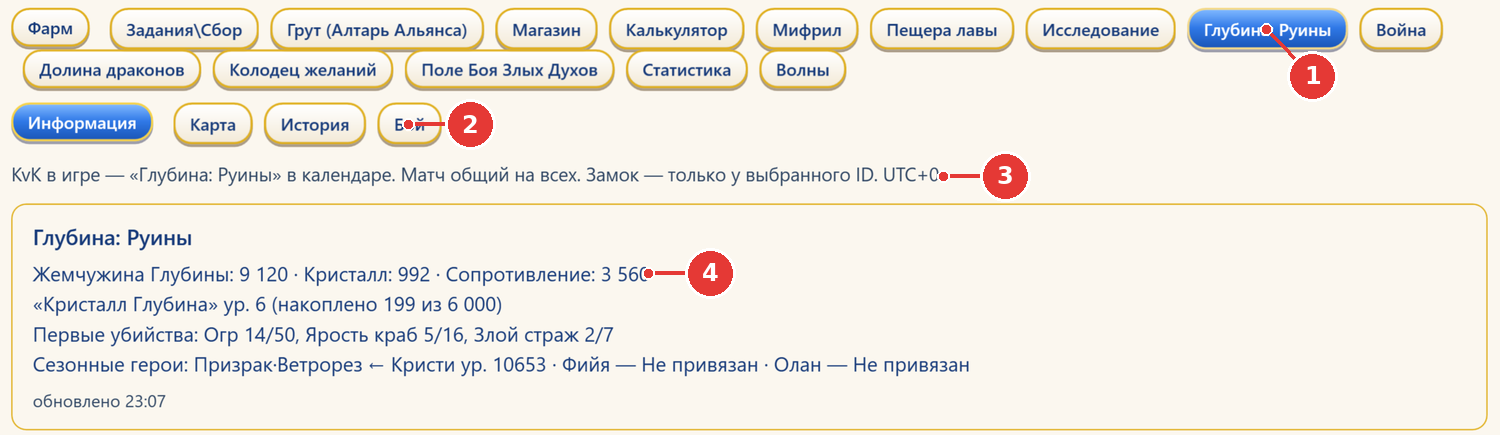
- 1The tab is renamed by season: “Burning Expedition” or “The Deep Ruins”.
- 2Sub-tabs: Information, (Quests), Map, History, Battle.
- 3The KvK match is shared; the castle shown is the selected character’s; times are UTC+0.
- 4Season summary: pearls, crystals, resistance, first kills, season heroes.
Sub-tabs
| Sub-tab | What’s there |
|---|---|
| Information | Status, castle, your faction, dates (UTC). Auto-collect for quests — every 10 minutes claims rewards that are ready on the KvK panel. Collect KvK achievements — claim rewards for finished achievements. Below: “Factions”, “Summary”, “Top 10”, “Ranking” — alliance power for the match from kg.dbapp.ru (“Refresh Power”). |
| Quests | The selected character’s KvK quests, as in the game. The “Run KvK quests” checkbox (Выполнять задания KvK): the bot assigns squads to open quests (Evil Guard, crab, gold mines) and claims the rewards; the other squads keep farming as before. “Defeat enemies” (damage to players) is not done by the bot. If there are no quests — the character is offline, the castle isn’t on KvK, or the game hasn’t sent the list yet (the sub-tab may be hidden). |
| Map | Live fortress map: colour — whose flag, cross — who is tearing it down. This is where you mark battle targets. |
| History | Finished KvK matches: alliances, factions and power. |
| Battle | The territory battle (below). |
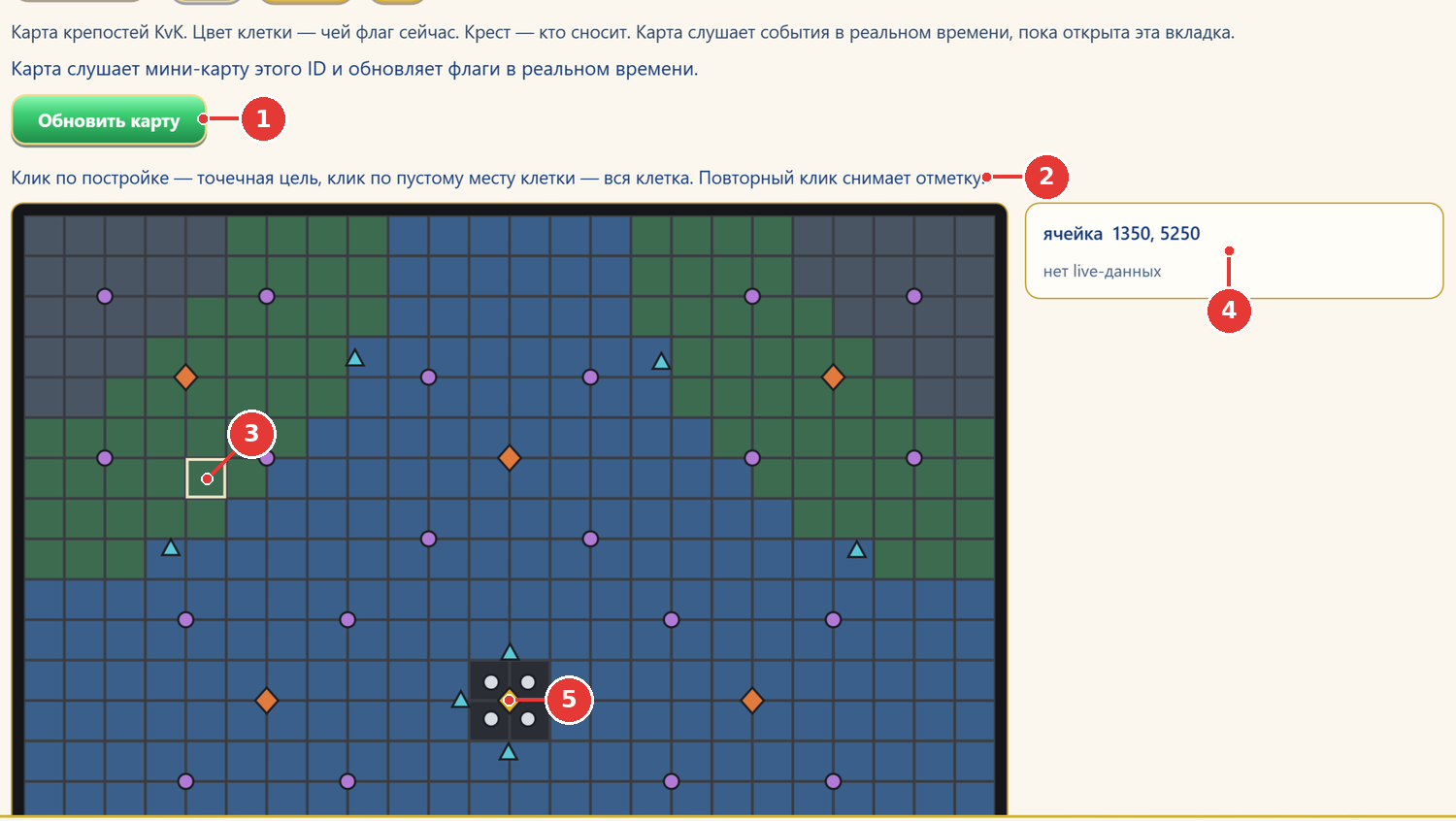
- 1“Refresh map” — reread the map and bind it to the selected character.
- 2Click a building — a point target; click empty space in a tile — the whole tile. Click again to remove the mark.
- 3Marked tile (white frame).
- 4Details of the selected tile.
- 5Center of the map — the throne.
Territory Battle
The bot captures fortresses, capitals, passes and the throne. It works out what is open today from the event calendar: fortresses from day 1, capitals from day 3, passes from day 4.5, the throne from day 20.
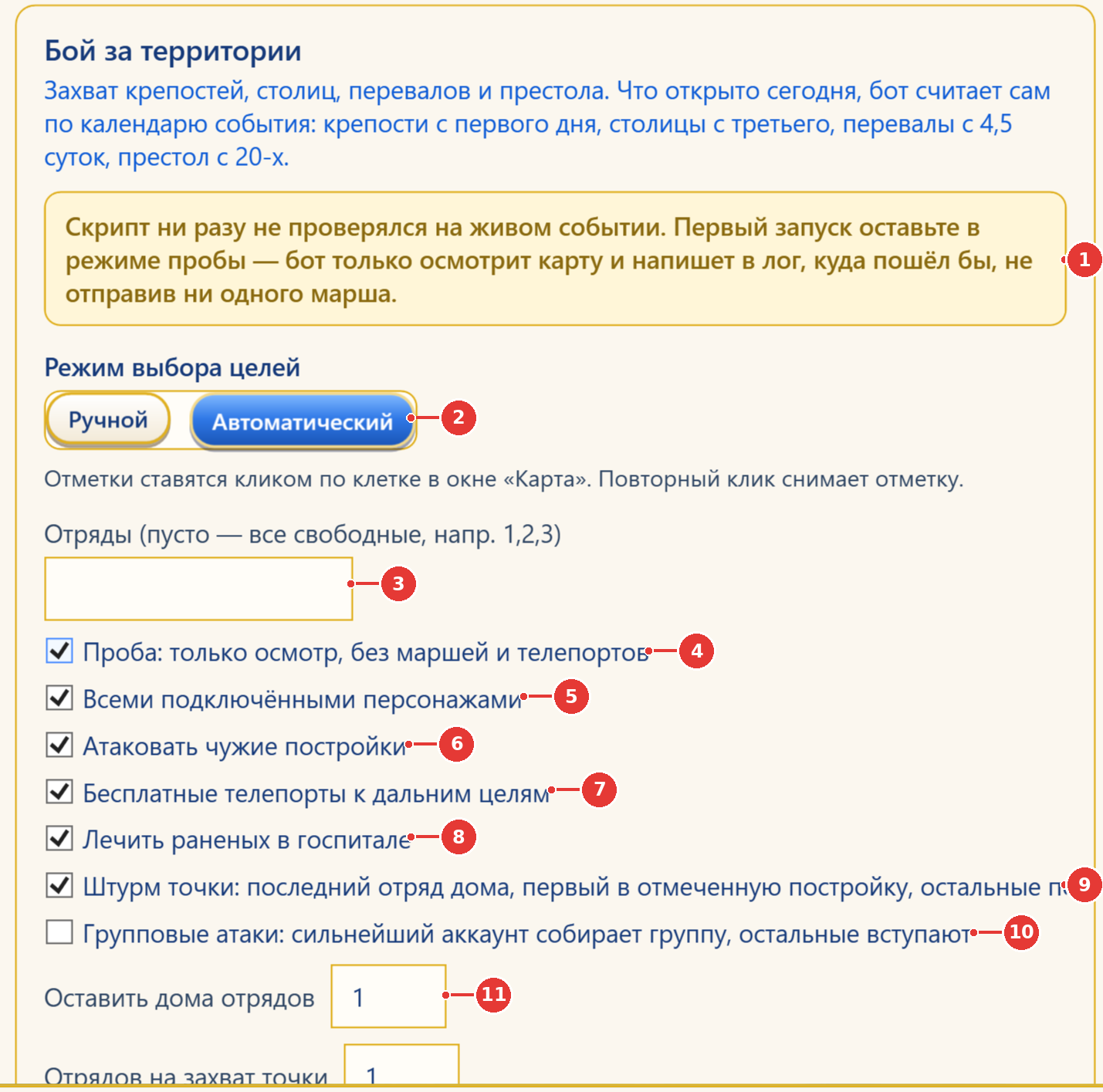
- 1Warning: the first run must be in “Trial” mode only.
- 2Target mode: “Manual” (by your marks on the map) or “Automatic” (whole map).
- 3Squads: empty — all free ones, or numbers separated by commas (1,2,3).
- 4“Trial” — inspect and write to the log only, no marches or teleports.
- 5Using all connected characters (otherwise only the selected one).
- 6Attack enemy buildings (unchecked — only take empty ones and reinforce your own).
- 7Free teleports to targets more than two tiles away.
- 8Heal the wounded in the hospital.
- 9“Point Assault” — the castle moves right next to the marked point (details in the text).
- 10Group attacks: the strongest account starts the rally, the others join.
- 11Squads to keep home / squads to capture the point — see the settings table.
| Setting | Meaning |
|---|---|
| Mode: Manual / Automatic | Manual — fight only where you marked tiles on the “Map”. Automatic — targets anywhere on the map. |
| Squads | Empty — all free ones, or numbers separated by commas: 1,2,3. |
| Trial | Inspect and log only — no marches, teleports or recalls. |
| Using all connected characters | Run on every online character. Unticked — only the selected one. |
| Attack enemy buildings | Unticked — only take empty buildings and reinforce your own. (In Farmer attacking is always on.) |
| Free teleports to distant targets | Teleport if the target is more than two tiles away. On cooldown the bot waits. |
| Heal the wounded in the hospital | Send the wounded to heal after losses. |
| Point Assault | The castle moves right next to the marked point and teleports back if destroyed. The first squad keeps marching into the building, the others hit enemy castles within 120 tiles, the last one never leaves the castle. Power is restored with scrolls. |
| Group attacks | The strongest account starts rallies; squads of all other accounts join. If the leader has no rallies for 2 minutes — solo play. |
| Squads to keep home | How many squads not to send into battle. 0 — all free ones go. |
| Squads to capture the point | How many squads go into the marked building at once; the rest hit nearby castles. |
| Don’t attack castles farther than, tiles | Only for attacks on enemy castles. |
| Reinforce when squads are fewer than | If our building holds fewer squads than this, reinforcements are sent. |
| Run for, min | How long to keep the battle loop going. Then the bot heals, recalls troops and leaves. |
14The “War” tab (Throne War)
What it does. During the Throne battle phase (the Throne is in the center of the home map) it occupies, reinforces or attacks the Throne and keeps the loop going for the set time. Outside the battle it only claims rewards.
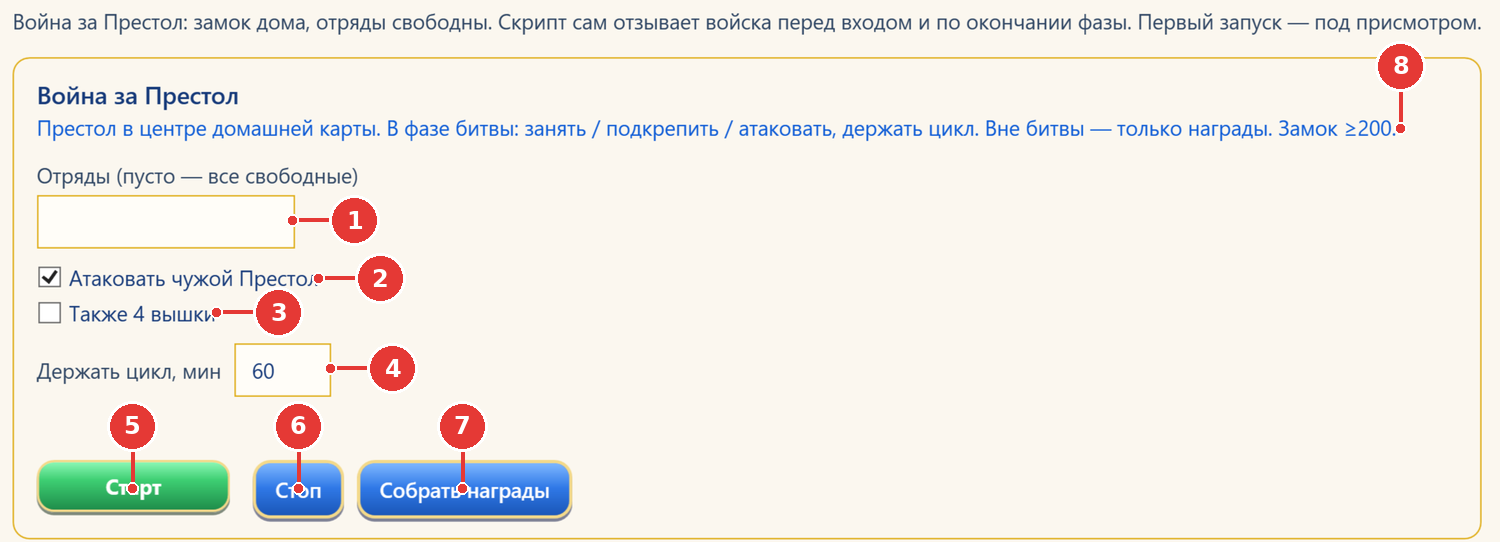
- 1Squads: empty — all free ones.
- 2Attack Enemy Throne.
- 3Also the 4 towers around the Throne.
- 4“Hold Cycle, min” — how many minutes to fight.
- 5“Start”.
- 6“Stop”.
- 7“Collect Rewards” — Throne quests and ranking reward, no marches.
- 8Conditions: the Throne is in the center of the home map; castle ≥ 200; outside the battle — rewards only.
- Attack Enemy Throne — hit the Throne if it isn’t yours. Also 4 towers — the towers around it too.
- Hold Cycle, min — how many minutes to fight.
- Collect Rewards — Throne quests and the ranking reward, no marches.
15The “Dragon Valley” tab
What it does. Cross-server “Dragon Valley: Clash”. The bot recalls squads, enters the field 3 minutes before the start, takes neutral fortresses next to your territory, garrisons your fortresses with a squad and hits the Dragon Valley Lords.
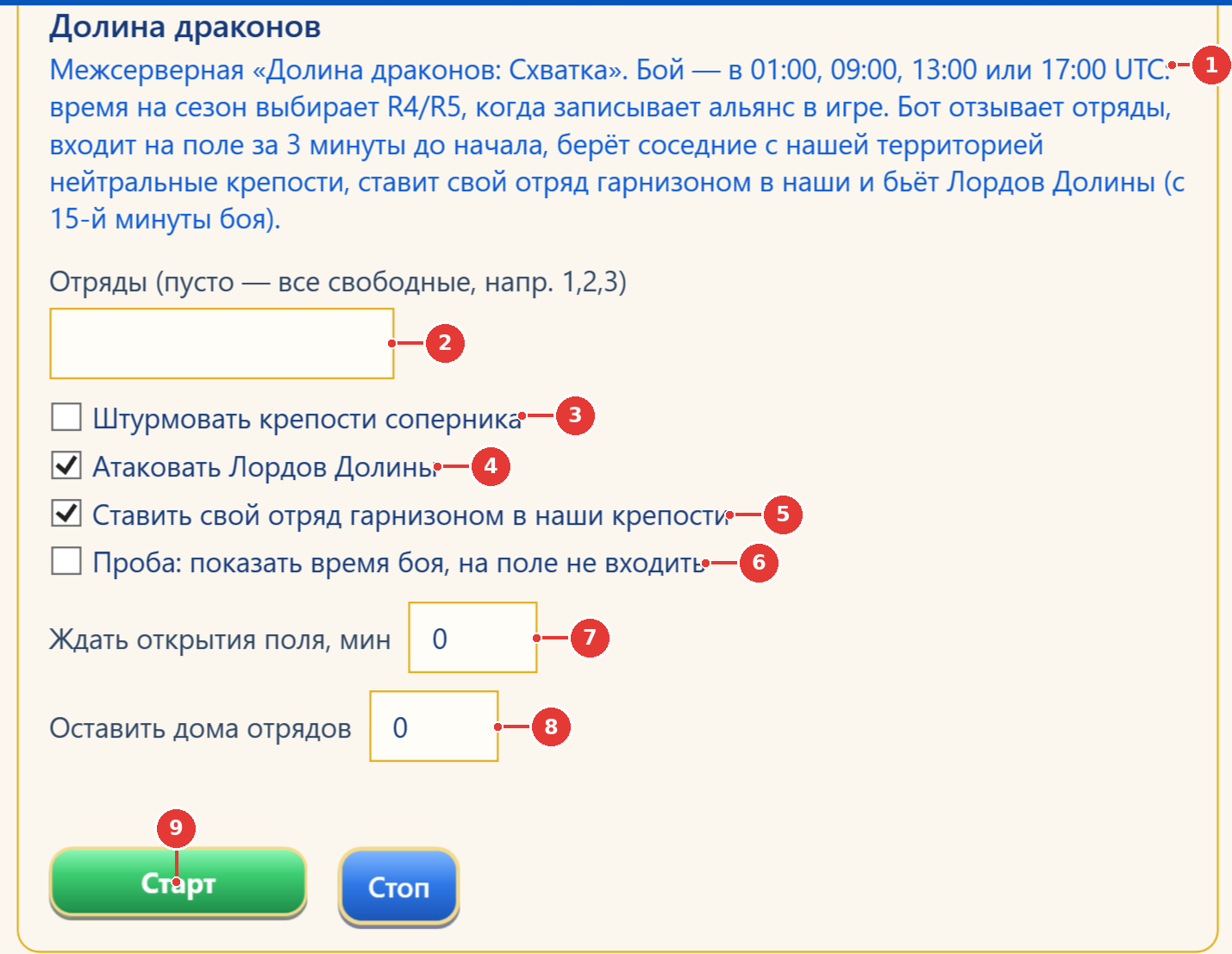
- 1Description: battle time 01:00 / 09:00 / 13:00 / 17:00 UTC, chosen by R4/R5.
- 2Squads: empty — all free ones.
- 3Storm enemy fortresses (all losses are severe wounds!).
- 4Attack Dragon Valley Lords (they appear from minute 15).
- 5Garrison our fortresses with a squad of yours.
- 6“Trial” — show the battle time without entering the field.
- 7Wait for the battlefield to open, min (manual start).
- 8Squads to keep home.
- 9“Start” / “Stop”.
| Setting | Meaning |
|---|---|
| Storm enemy fortresses | ⚠ Whoever attacks a player fortress takes only severe wounds. Neutral fortresses are taken even without this box. |
| Attack Dragon Valley Lords | Lords appear 15 minutes after the start and respawn 10 minutes after being defeated. Losses are light wounds only; the final blow gives the alliance a 9-minute buff. |
| Garrison our fortresses | Only one of your squads per fortress. |
| Trial | Show the battle time without entering the field. |
| Wait for the battlefield to open, min | For a manual start: how many minutes to keep trying to enter. |
| Squads to keep home | So the castle isn’t left empty. 0 — send all. |
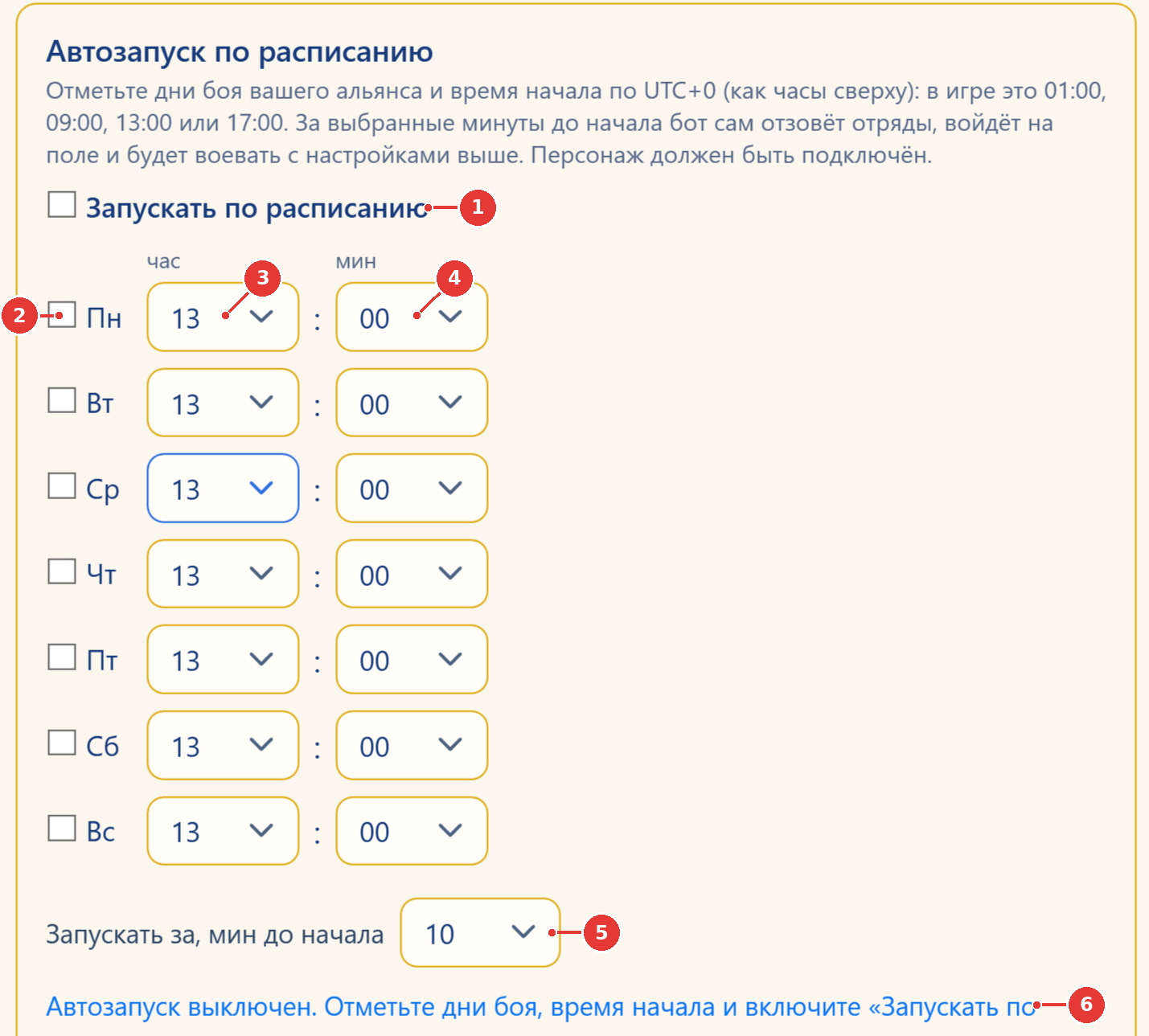
- 1“Start on schedule” — the main switch (off by default).
- 2Your alliance’s battle days.
- 3Battle start hour (UTC+0).
- 4Minutes.
- 5How many minutes before the start: recall squads and enter the field.
- 6Auto-start status.
- Tick your alliance’s battle days.
- Set the start hour and minutes in UTC+0.
- “Start this many min before” — when to recall squads and enter.
- Turn on “Start on schedule” (off by default). The character must be connected.
16The “Wishing Well” tab 💎
What it does. Places Diamond bets in the “Wishing Well” event. Auto mode waits for the well’s pool to grow and then fires a burst; manual mode bets right away.
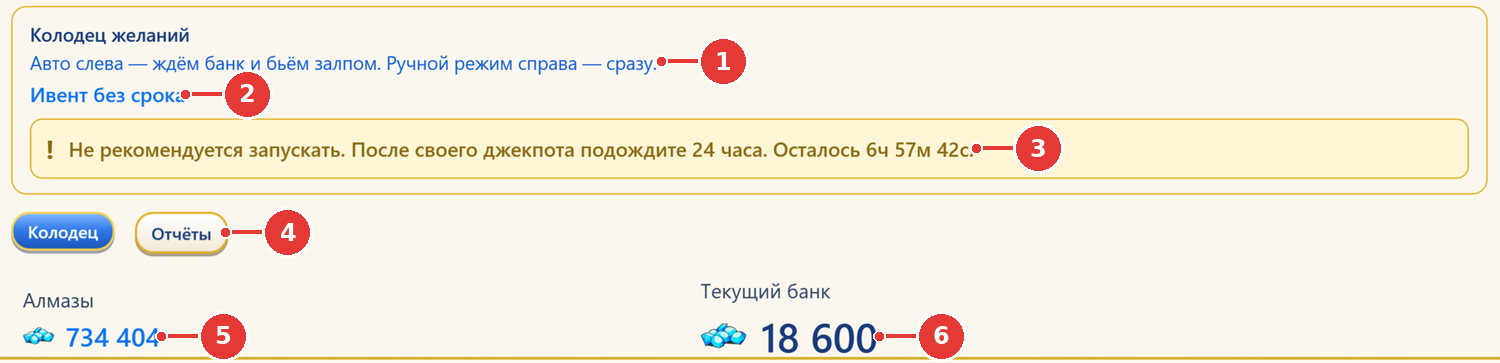
- 1Left — auto (wait for the pool, then fire a burst); right — manual mode (right away).
- 2Event status.
- 3Warning: for 24 hours after your own jackpot, betting is not recommended.
- 4Sub-tabs “Well” and “Reports”.
- 5Your Diamonds.
- 6Current well pool.
| Setting | Meaning |
|---|---|
| Auto threshold | The well picks the pool size to start betting from. The threshold adapts to your daily limit and drops toward 00:00 UTC so the limit isn’t wasted. |
| Start from the bank | From a pool of 100,000 every bet is break-even or better; below that you lose on average. |
| Burst speed | Bets per second: 2–20, default 8. Higher — a better shot at the jackpot, but higher spending. |
| Daily limit | How many Diamonds to spend per day (UTC). 0 — no limit. |
| Start (auto) | The well waits for the pool in the background without blocking the task queue, and comes back after a reconnect. |
| Manual Mode | One bet right now · 100 Diamonds · no waiting for the pool. |
| Reports | Victories, total (bet, won, profit), today, windows, pool jackpots. |
After any jackpot the bot pauses for 120 seconds; for 24 hours after your own jackpot betting is not recommended (the app warns you). All settings can be changed on the fly.
The screenshot doesn’t show the auto-mode controls; this table is based on the interface labels.
17The “Evil Spirit Battlefield” tab
What it does. Takes part in the Evil Spirit battle: hits the counter-titan up to level 10, then the king with a camp until the battle ends. Or, with the checkbox, “carries chests”: finds wave monsters, hits them and sends the squad home — the chest counts toward your personal points.
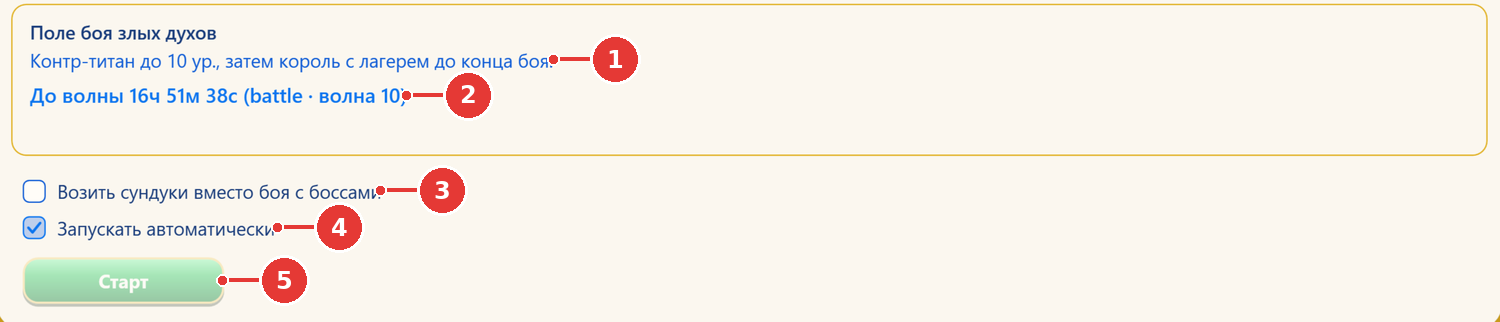
- 1How it fights: counter-titan up to Lv. 10, then the king with a camp until the battle ends.
- 2Timer to the wave / to the end of the wave.
- 3“Carry chests instead of fighting bosses”.
- 4“Launch automatically” — join the battle as soon as the server opens the wave window.
- 5“Start” (available during the battle phase).
- “Launch automatically” — join the battle as soon as the server opens the wave window.
- “Start” is only available during the battle phase.
18The “Statistics” tab
Totals of the bot’s work: rewards collected, priests finished off, help given to allies, drakes disbanded and so on. Choose all characters of this run or the selected one; period — session, today, all time.
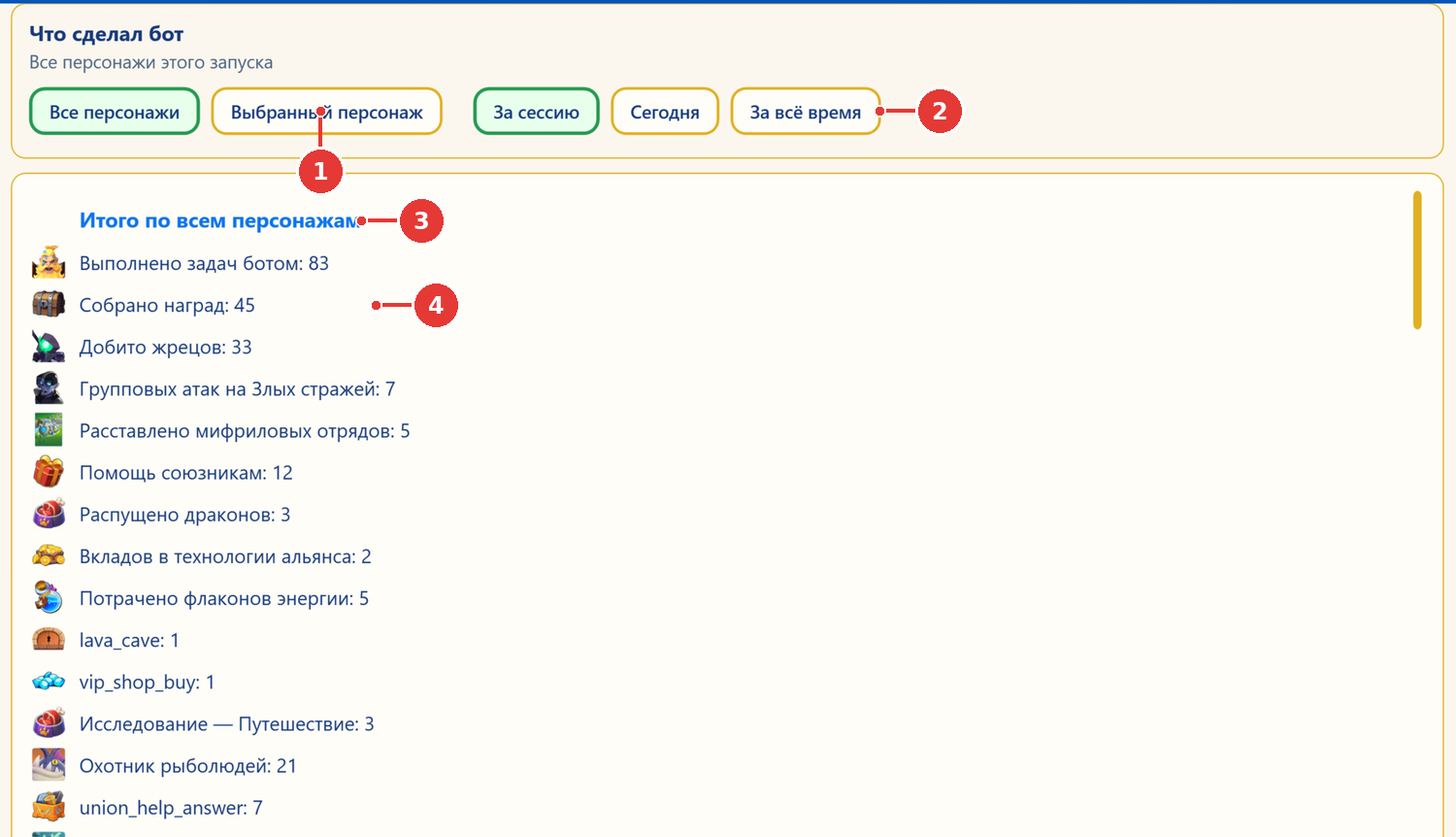
- 1Whose totals: every character in this run, or only the selected one.
- 2Period: this session, today, all time.
- 3Totals by type of work.
- 4For example: rewards collected, priests finished off, help given to allies, drakes disbanded…
19The “Waves” tab (Defense waves)
What it does. Clears defense wave stages by itself, very fast, up to the target you choose. The cap is castle level × 15; you can’t set a target above it.
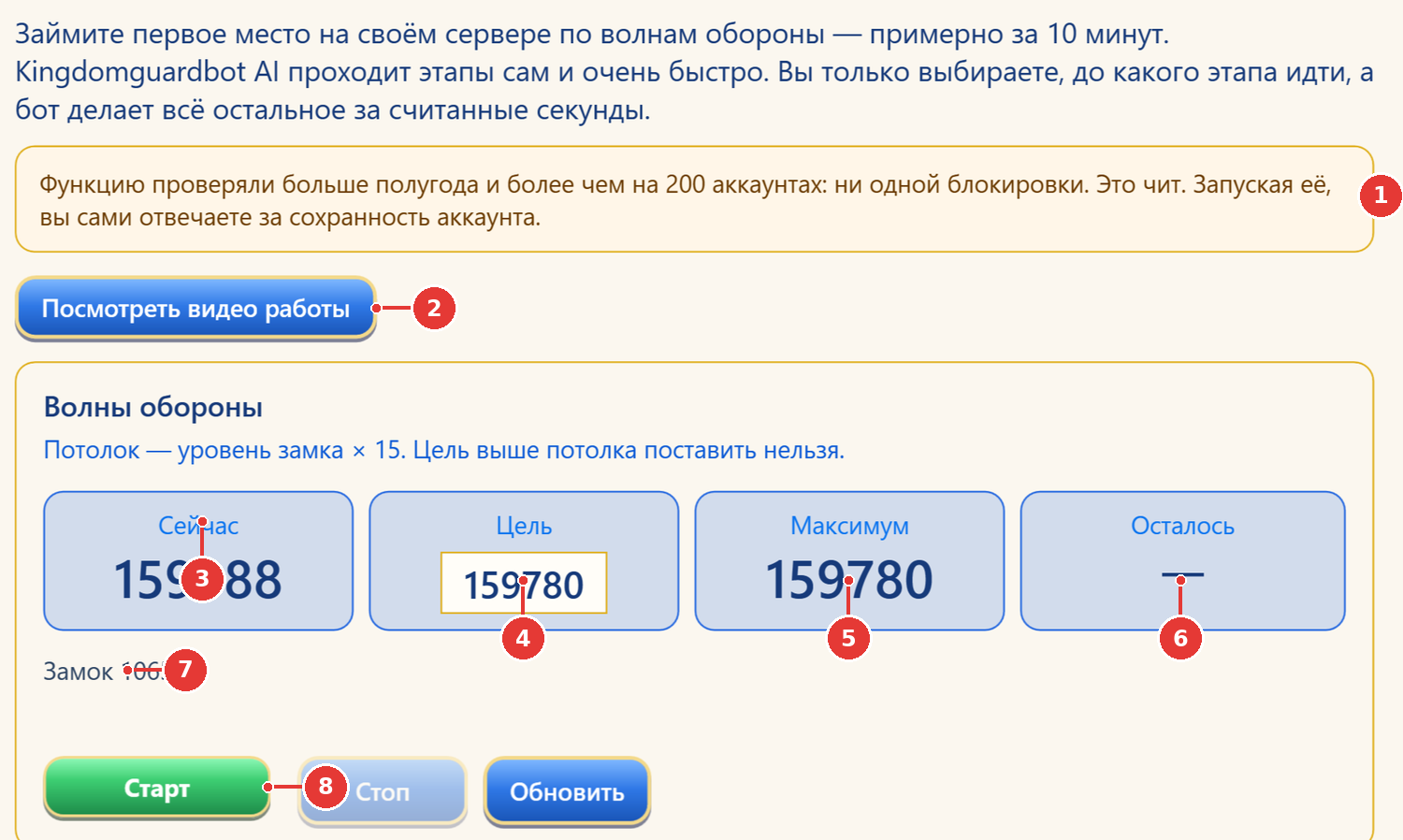
- 1Warning: this is a cheat; you are responsible for your account.
- 2Demo video (you can watch it before paying).
- 3Now — current wave stage.
- 4Target — which stage to go to (not above the cap).
- 5Max = castle level × 15.
- 6Stages left.
- 7Castle level.
- 8“Start” / “Stop” / “Refresh” (sync the current wave and cap).
- Press “Refresh” to sync the current wave and the cap.
- Set the “Target”.
- “Start”. To stop — “Stop”.
20Farmer mode
“Farmer” is for players with many characters (the 8, 15 and 30 account plans). It does three different things — it’s important not to mix them up:
| What | In plain words | Button |
|---|---|---|
| 1. Batch of steps | A one-off pass: go through every checked character in turn and do the checked steps (collect mail, rewards, join rallies, buy out the shop…). When it’s done, it stops. | “Run · N ID · M steps” |
| 2. Farm on selected | Continuous farming with one script on every checked character — like “Script for all” + “Start” in Basic mode, but for many at once. | “Start farming on selected” |
| 3. Farm growth | The “Farm growth” script (Рост ферм) in the same panel: new characters grow by themselves (castle, stages, rallies, monsters, gold, rewards). | “Farm growth” script in “Farm on selected” |
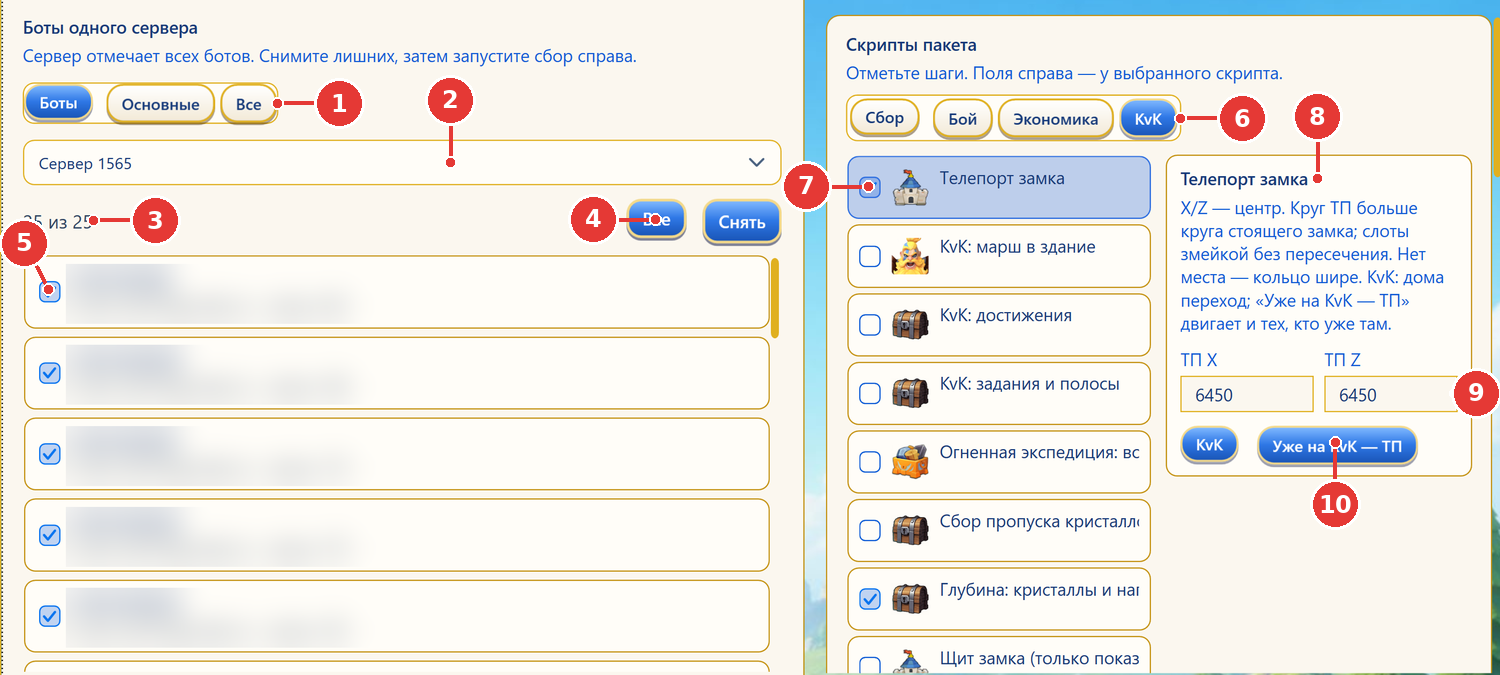
- 1Group: Bots / Main / All.
- 2Server: Farmer works with characters of one server.
- 3Checked counter: “25 of 25”.
- 4“All” / “Clear” — check or uncheck everyone.
- 5Character checkbox: does it take part in the batch and in “Farm on selected”.
- 6Batch step categories: Collect, Battle, Economy, KvK.
- 7Step checkbox — the step goes into the batch. Click the row to show its settings.
- 8Settings of the highlighted step (here — “Castle Teleport”).
- 9Step fields: teleport coordinates X / Z.
- 10Step buttons: “KvK” / “Already on KvK — TP”.
20.1. Choosing characters (left side)
- Switch the header to “Farmer”.
- Pick a group: Bots, Main or All (the role is set when adding an account or by right-clicking its card).
- Pick a server: Farmer works with characters of one server at a time.
- By default every character is checked. “All” / “Clear” check or uncheck everyone; tick individually for fine control. The counter shows “checked of total”.
20.2. The batch of steps (right side)
Steps are grouped into Collect, Battle, Economy, KvK. A tick puts the step into the batch. Clicking a row shows that step’s settings below.
Batch steps
| Category | Steps (✓ — on by default) |
|---|---|
| Collect | Alliance Help Request ✓ · Alliance Collection ✓ · Alliance Challenge 💎 · Lava Cave reward collection ✓ · Jennifer’s Station ✓ · Daily Quest ✓ · Tavern: Recruitment ✓ · Unit Training · Goddess Trials: Gift · Dragon King’s Gifts · Kingdom Treasure · Merge Units · Hero Upgrade · City Tech · Castle Upgrade: +1 level · Stages: catch up to the required one · Collect Rewards ✓ · Food for Crystals 💎 · Exploration — Travel ✓ · Mail Collection ✓ · Mine collection ✓ · Red Envelopes ✓ · Secret: help · Secret: send SSR+ |
| Battle | Auto-join ✓ · Lava Cave ✓ · Mithril: refresh squads ✓ · Mithril: attack · Alliance Duel · Camp and joining · Element Lords · Hunt: Fishmen · Throne War |
| Economy | Free AP ✓ · Action Point Recovery 💎 · Power Recovery ✓ · Buy Out Shop ✓ · Buying recruitment cards · Castle Upgrade |
| KvK | Castle Teleport · Vote for KvK weather ✓ · KvK: march to building · KvK: Achievements · KvK: Quests & Lanes · Collect Crystal Pass · The Deep: crystals and season rewards · Castle shield (just show the remainder) · Burning Expedition: War by Marks · KvK: farm captures (KvK: захваты фермами) |
List based on the step catalog of version 3.0.45. The on-screen grouping may differ slightly.
Steps with settings or special behaviour
| Step | What to know |
|---|---|
| Lava Cave | If the map is already open, the first character records that and the rest skip the cave until Mon 00:00 UTC. |
| Castle Upgrade | Builds the castle to max (gold, stone/wood/steel, exchange). Off by default and not remembered — tick it consciously each time. |
| Action Point Recovery 💎 | Paid recoveries for Gems (the first is 200, then more). How many to buy — one number for the whole batch. |
| Castle Teleport | X / Z is the center; castles line up around it in a snake without overlapping. “KvK” — move to KvK; “Already on KvK — TP” also moves those already there. |
| KvK: march to building | One-off: tower/throne coordinates, squad and type (reinforce, attack, rally). The squad must be home. |
| Camp and joining | Joins a rally by the leader’s game ID or the rally ID and leaves at once (the squad ends up in camp), or stays if “Stay in the rally” (Остаться в групповой) is ticked. |
| Vote for KvK weather | Week — in the step settings; votes for your faction. |
| Throne War, War by Marks, farm captures | Run after the batch, not inside it. Throne War uses the “War” tab settings; War by Marks uses targets marked on the KvK map (no marks — defense only); captures: each bot takes free buildings next to our territory with one squad. Combined with “War by Marks”, the bots capture and the mains fight. Throne War doesn’t run together with the expedition. |
20.3. “Farm on selected” — continuous farming
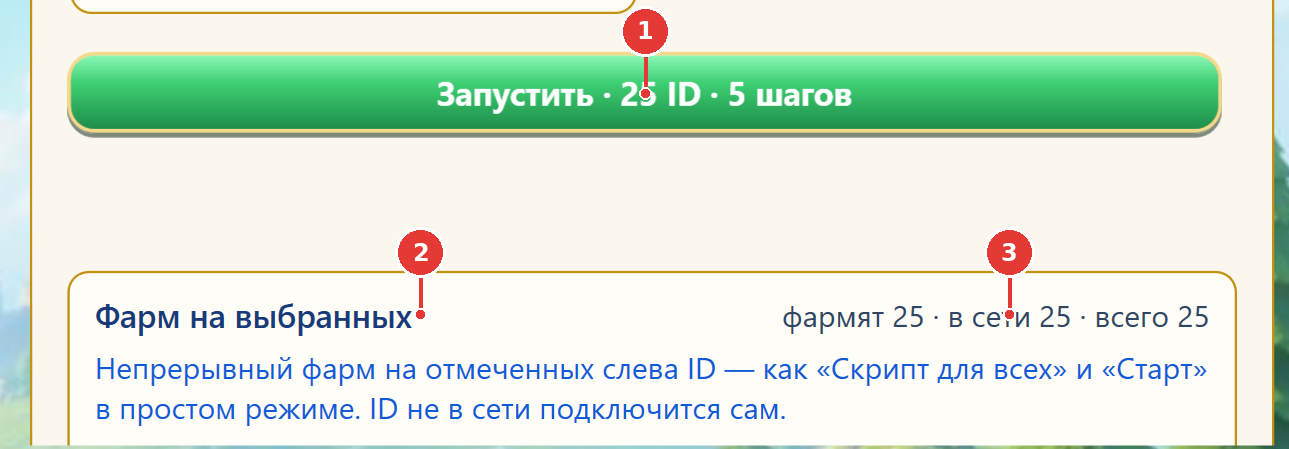
- 1“Run · 25 ID · 5 steps” — a one-off batch over the checked characters.
- 2Below — the separate “Farm on selected” panel (continuous farming).
- 3Counter: farming · online · total.
- 1One script for every checked character. Parameters (km to Titans, AP, mine level) are taken from each character’s squad settings in Basic mode, otherwise defaults. The “Farm growth” script lives here too.
- 2“all free” — every squad in the castle and not busy; or specific squad numbers. A squad outside the castle is skipped.
- 3Start: an offline character connects by itself (a manual start lifts the quarantine). Stop: squads return to the castle.
- 4Off by default. See the diagram below.
Only what you started with the button runs. A dropped character is not reconnected. Lava Cave and dragon gifts don’t start by themselves.
• reconnects dropped characters
• resumes farming after a program restart
• enters the Lava Cave when an attack is available (and calls alliance neighbours with the same checkbox)
• collects the Dragon King’s gifts
Automation never overrides the quarantine: if someone logged in from another device, it waits 10 minutes.
20.4. Farm growth (autonomous)
A new character grows by itself: gathers squads, clears defense stages, joins every alliance rally, hits monsters with leftover AP, and when there are no rallies and AP is gone — gathers gold at the alliance dragon nest or a gold mine. All checked characters work at the same time. Growth never joins alliances — add your farms to an alliance yourself.
| Setting | Meaning |
|---|---|
| Castle and monsters (3 options) | 1) first kills of one monster type first, then castle to max; 2) all 4 monster types in turn, then the castle; 3) castle to max right away (monsters will close). Why it matters: you can only hit “last killed + 1”, and first-kill rewards (levels 1–50 for 4 types) are the main source of stone. If the castle outpaces your kills, those monsters close forever. |
| Join alliance rallies | Free squads join rallies, R5’s first. Costs no AP. |
| Attack monsters | Next-level monsters for first-kill rewards (50 AP per monster). AP packs from the bag are used too; AP is never bought with Gems. |
| Grow the castle | The castle is upgraded with all gathered gold and resources — after each collection and every 5 minutes, within the chosen mode. |
| Gather gold | Alliance dragon nest or a gold mine. |
| Rewards and dailies | Mine — every 30 min; every 3 hours — mail, chapters, dailies (no purchases), free and ad rewards, alliance rewards (no tech donations), Alliance Challenge, secret-quest help, championship sign-up, recruiting with cards from the bag, unpacking the bag; royal chests, alliance help (15 min), realm chests (30 min), territories (6 h). |
| Teleport to R5 on start | The castle moves close to R5. Uses an “Alliance Teleport”, or an Advanced Teleport (Продвинутый телепорт) if there’s none. |
| Defense stages | Up to the cap “castle × 15” (castle 29 → stage 435, 40 → 600, 48 → 720). Stage 70 unlocks the world map, 85 — the alliance, 92 — rallies. |
| “Teleport to R5” and “Growth stats” buttons | Move the checked characters right now; growth totals for today and all time (castle, stages, power, gold, rallies, monsters, teleports). |
Common Farmer mistakes
- Changed a setting of the wrong step — the settings block shows the highlighted row, not the ticked one.
- Characters from different servers are checked — Farmer works with one server at a time.
- Expected “Farm on selected” to recover after a restart, but its “Launch automatically” is off.
- Farms don’t grow through rallies — they’re not in an alliance. Join one manually.
- “Castle Upgrade” was ticked last time and isn’t today — that tick is deliberately not saved.
- Can I run the batch several times a day?
- Yes. Once-a-day steps already done today are skipped automatically.
- Farming stopped while the batch was running — is that normal?
- Yes. Farming on those characters is paused during the batch and resumes by itself.
21Troubleshooting
| What you see | Why it happens | What to do |
|---|---|---|
| The character disconnected by itself / you got kicked from the game on your phone | You logged into the same character on your phone: one character — one login. | Don’t play that character while it’s in the bot. To bring the bot back — “Connect” (a manual press works immediately; automation waits 10 minutes). |
| A card jumped to the top of the list, the bell asks for a login | The code login has expired. | Shield → “Add account” → same email → “Send code” → code → “Save Account”. |
| “Bot access” window / no license | The subscription has ended or the trial hasn’t been opened. | Subscribe, or send a trial request and press “Check now”. |
| Can’t pick more characters | Your plan’s limit is reached. | Shield → “Choose characters” — drop some, or change plan. |
| No Farmer mode | You’re on the 1-account plan. | Farmer is on the 8, 15 and 30 plans. |
| Farm slots are empty | The character isn’t connected or the squads haven’t loaded yet. | Connect and wait a few seconds. |
| “Start” does nothing | No script assigned, all squads busy, the event is outside its window (Haka, Behemoth), or the script is KvK-only. | Read the status on the tab — the reason is there. |
| Titans stopped | Out of AP. | “Use AP automatically” / “Spend”, or “Apply AP”. |
| Groot or Dragon Valley didn’t fire | Time not set in UTC; the program was closed; the character wasn’t connected. | Check the time against the UTC clock in the header and keep the program running. |
| Alliance shop won’t buy | After switching alliances the game blocks purchases for 24 h / 7 days. | Wait it out. |
| No Lava Cave access | Castle below 100, or you just joined an alliance (access after 00:00 UTC). | Wait for the reset. |
| The VK login window won’t open | WebView2 Runtime is not installed. | Download it from the link in the window, or use “Open VK login in browser”. |
| Can’t log in with Google | Google login isn’t possible from the app. | Link an email in the game and log in with the code. |
| Everything is slow | You’re far from the project server. | Shield → “Server” → try the other one. |
| Nothing helped | — | Shield → “Report an error”: describe what you clicked. The log is attached automatically (no passwords or tokens). |
22Glossary
| Term | Meaning |
|---|---|
| ID / character / account | One game character. Plans count these. |
| Squad, slot | One of a character’s 5 marches. A slot on the “Farm” tab = a squad. |
| Script | What a squad does: gold, Titans, priests and so on. |
| Rally, group attack | An attack that several players join. |
| AP | Action Points; spent on Titans and monsters. |
| UTC+0 | Game server time. |
| Reset | Limits reset: daily at 00:00 UTC, weekly on Mon 00:00 UTC. |
| KvK | Cross-server event (Burning Expedition / The Deep Ruins). |
| Quarantine | The 10 minutes after a kick (someone logged in on another device) during which automation doesn’t reconnect. |
| HWID | The hardware ID of the computer your license is tied to. |
| Batch | A set of Farmer steps run once across all checked characters. |
| Bots / Main | Character roles: farm accounts and main accounts. |
Kingdom Guard Bot 3.0.45 · guide based on the program’s interface, built-in help and kingdomguardbot.ru · October 2026
23Cheat sheet
One page that’s easy to print or keep on your phone. Separate file: quickstart_en.png.